How to Colorize Black and White Photos with AI
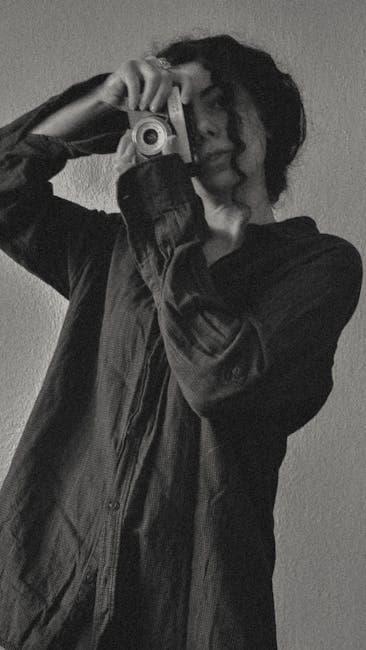
Seeing the Past in Color
There is something profoundly different about seeing a historical photograph in color. That black and white portrait of your great-grandmother suddenly becomes a real person — with warm skin, a blue dress, and brown hair. The emotional distance created by monochrome dissolves. AI colorization makes this possible for anyone, with any photo, in seconds.
How AI Colorization Actually Works
AI colorization is not painting by numbers. The technology uses deep neural networks trained on millions of color photographs paired with their grayscale versions. During training, the AI learns statistical associations: skies tend to be blue, grass is green, skin tones have specific warm hues, military uniforms from specific eras have known colors.
When you upload a B&W photo, the AI:
- Analyzes the image content — identifying objects, textures, and context (outdoor scene, portrait, group photo, era clues)
- Assigns color probabilities — for each region, the model calculates the most likely colors based on training data
- Resolves ambiguities — when multiple colors are plausible (a dress could be any color), the AI picks the most statistically likely option or uses era-appropriate hues
- Generates a coherent color image — ensuring colors blend naturally across boundaries and maintain consistent lighting
What the AI Gets Right
- Skin tones — the AI handles diverse skin tones well, adapting to lighting conditions and photographic processes
- Natural elements — sky, water, trees, grass, and flowers are colored accurately
- Common objects — cars, buildings, roads, and furniture receive plausible colors
- Military uniforms — the AI recognizes era-specific uniforms and applies historically accurate colors
Where the AI Guesses
- Clothing colors — the AI cannot know the exact color of a specific dress or shirt. It picks plausible colors based on era and context.
- Interior decor — wallpaper, curtains, and furniture get reasonable but not necessarily accurate colors
- Unusual objects — rare or context-specific items may receive generic coloring
Step-by-Step Guide
Step 1: Prepare Your Photo
For the best colorization results, start with the cleanest possible image:
- If the B&W photo has scratches, fading, or damage, run it through the restore tool first. Cleaning up damage before colorization prevents the AI from colorizing artifacts.
- Scan at 300+ DPI for prints. Higher resolution gives the AI more detail to work with.
- Crop out album borders, tape marks, and non-image areas.
Step 2: Upload to the Colorize Tool
Go to the colorize tool and upload your image. The AI processes the photo in about 10-20 seconds, analyzing every region and applying color.
Step 3: Review the Results
Examine the colorized result carefully:
- Check skin tones — they should look natural, not orange or grey
- Look at vegetation and sky — these should be vivid but not oversaturated
- Inspect clothing — colors should be plausible even if not historically exact
- Verify overall mood — the color should enhance, not distort, the original atmosphere
Step 4: Enhance Faces
For portraits, run the colorized result through the face restore tool. Colorization can sometimes soften facial features slightly, and the face model recovers sharpness and detail.
Step 5: Upscale for Printing
Old B&W photos were often small. If you want to print the colorized result at a larger size, use the upscale tool to increase resolution while maintaining the new color detail.
Tips for Best Colorization Results
Photo Selection
- High contrast photos work best — clear separation between light and dark areas gives the AI better boundaries
- Well-lit portraits are ideal — even lighting allows accurate skin tone detection
- Outdoor scenes with clear sky — the AI uses sky and vegetation as color anchors
- Group photos work — the AI handles multiple people with different skin tones
Common Issues and Solutions
- Patchy color — usually caused by damage in the original. Restore the photo first, then colorize.
- Incorrect colors on specific objects — the AI guesses based on statistics. This is expected and is a limitation of automated colorization.
- Muted colors — some photos produce subtle, pastel-like coloring. This is often more historically accurate than vivid saturation.
- Color bleeding at edges — running the result through restore or face restore can clean up boundary issues.
The Best Workflow for B&W Family Photos
For a complete transformation of B&W family photos, follow this order:
- Restore — fix damage, scratches, and fading with the restore tool
- Face restore — enhance facial detail with the face restore tool
- Colorize — add color with the colorize tool
- Upscale — enlarge for printing with the upscale tool
This workflow produces the most natural-looking results because each step builds on a clean foundation.
Historical Context Improves Results
If you know details about your photo, they can help you evaluate the AI's output:
- Military photos — knowing the branch, era, and country helps verify uniform colors
- Wedding photos — bride's dress was not always white; pre-1900 brides often wore colored dresses
- Location knowledge — regional vegetation, architecture, and fashion provide context clues
Start Colorizing Your Photos
Upload your B&W photo to the colorize tool and see your family's past in a completely new way. For the best results, start with the restore tool if your photo has any damage. Explore all our AI tools for the complete restoration and colorization workflow.