Restore Old Photos
Upload an old or damaged photo and let AI restore it. Removes scratches and fixes fading — then enhance further with colorization, face restoration, and upscaling.
Drop your old photo here or click to upload
Supports JPG, PNG, WebP (max 10MB)
Or try a sample image:
By Sarah Mendez, Content creation assistant
Last updated June 2026
See AI Photo Restoration in Action
Drag the slider to compare a real damaged photo with its restored result, then browse restoration result examples across different photo and damage types.
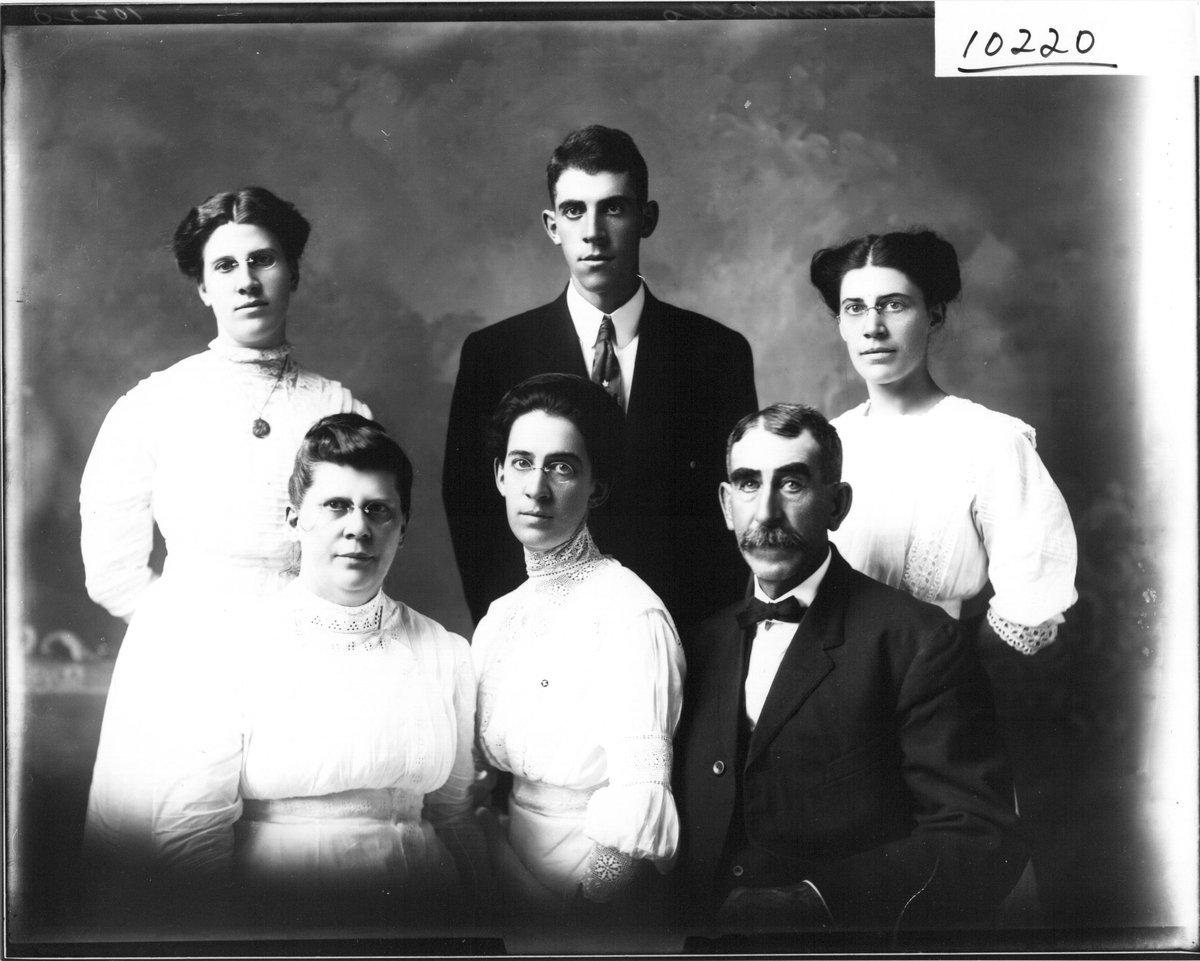
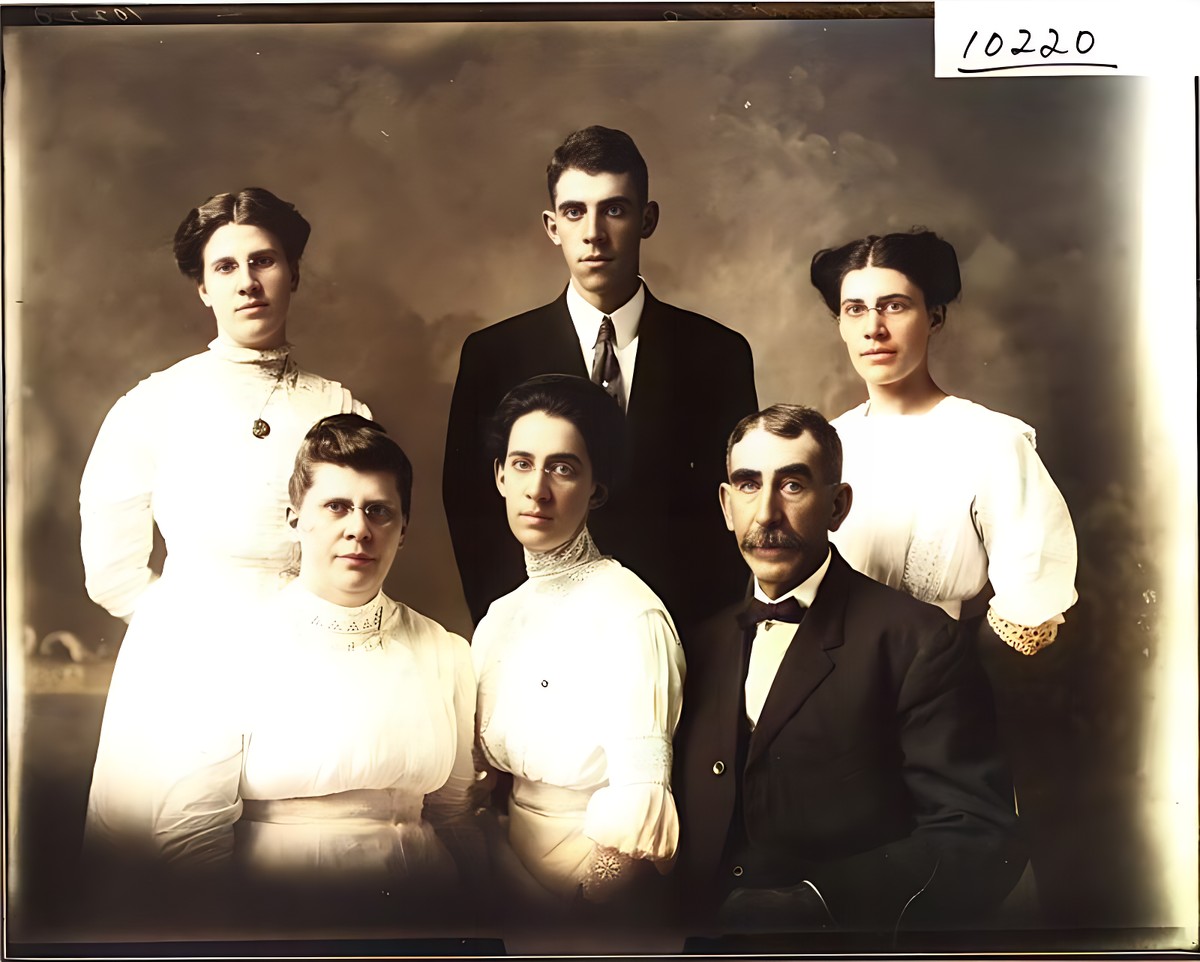
A real damaged photo (left) and its AI-restored result (right).
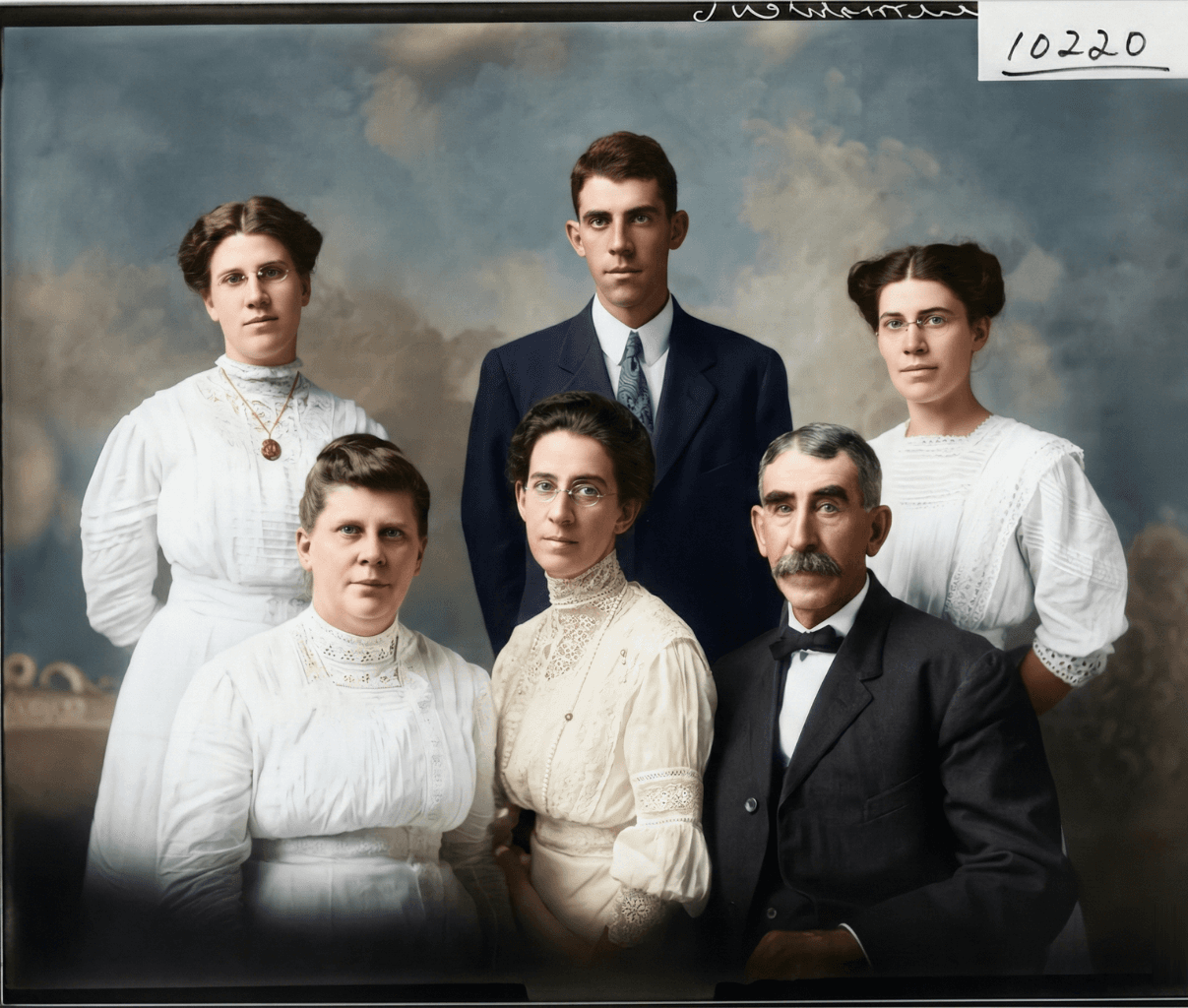
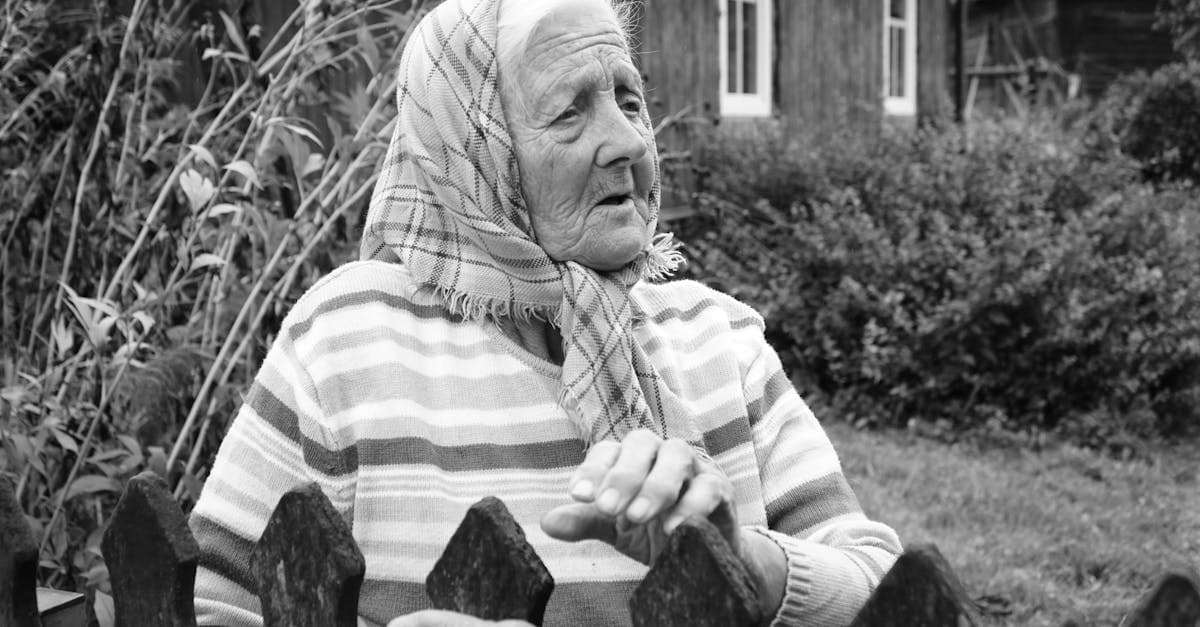
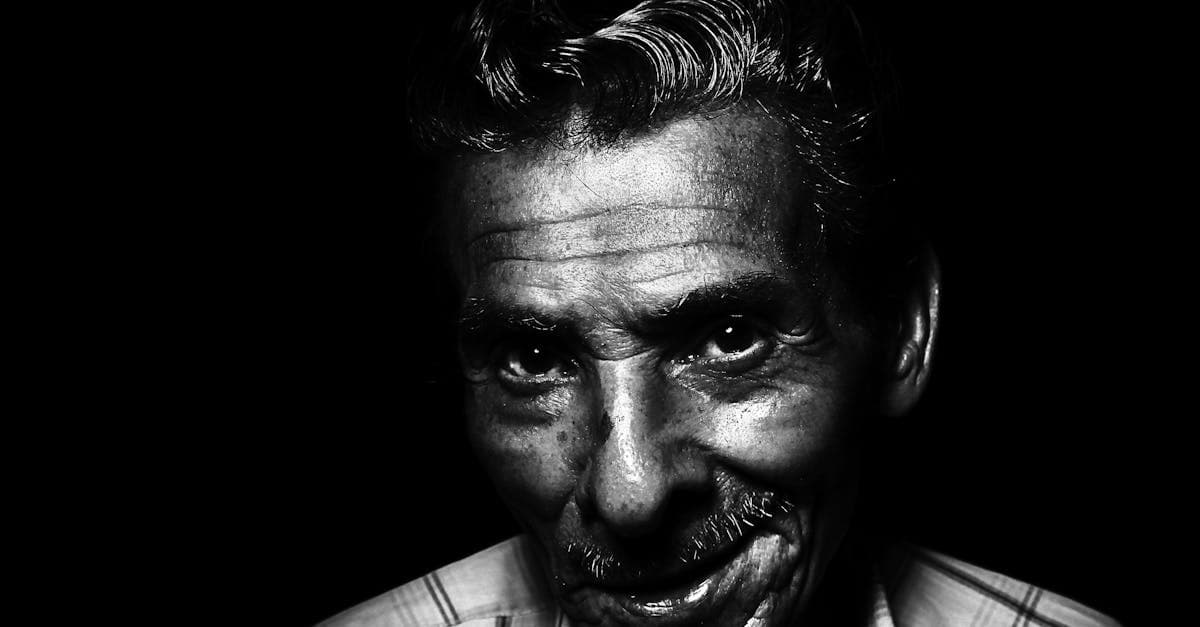
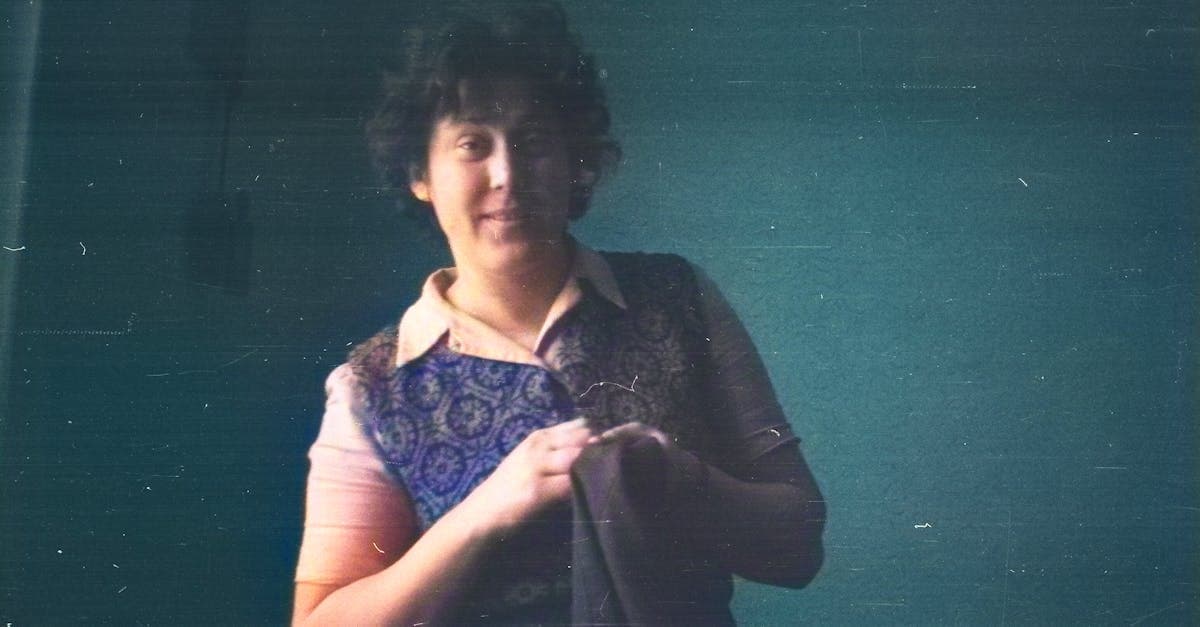
Restoration Results by Photo & Damage Type
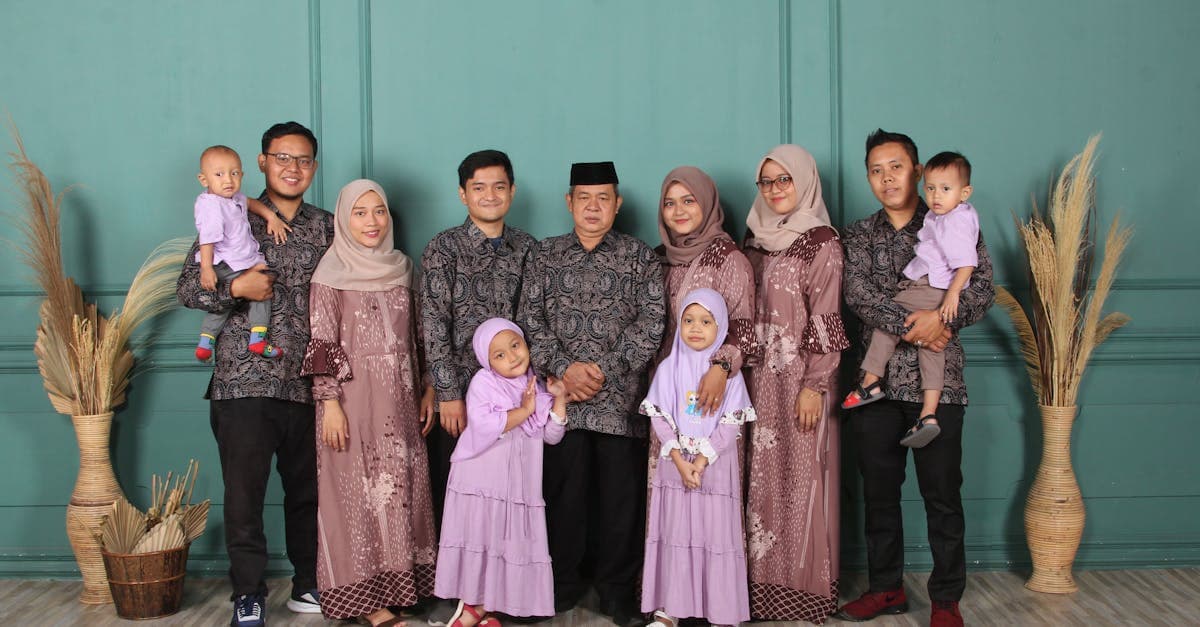
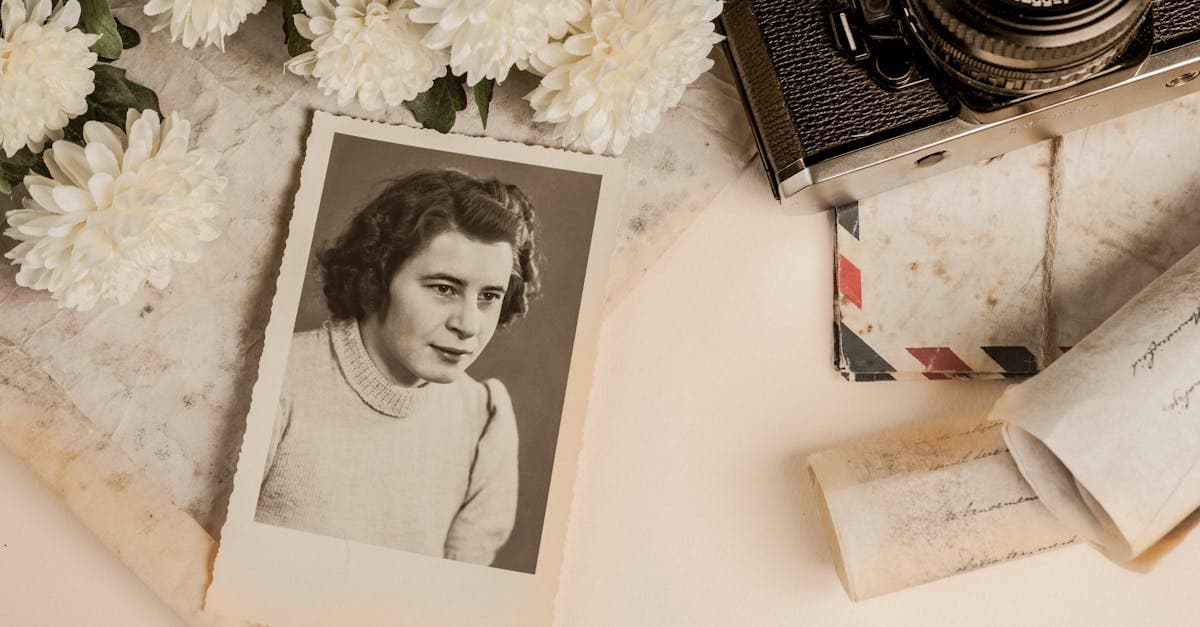
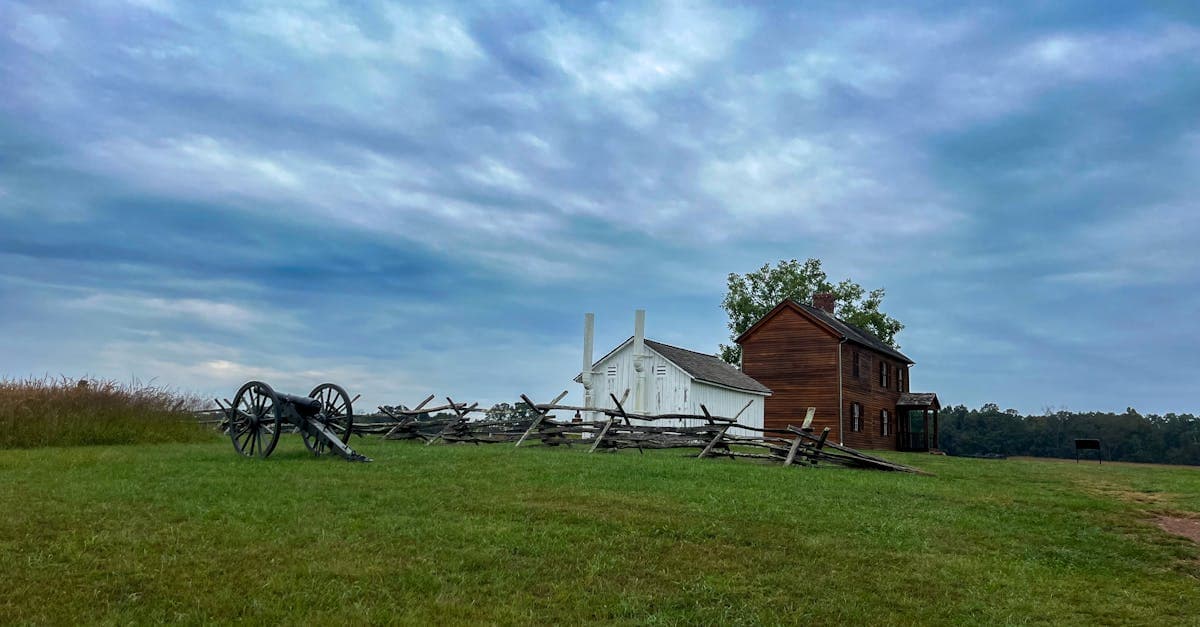
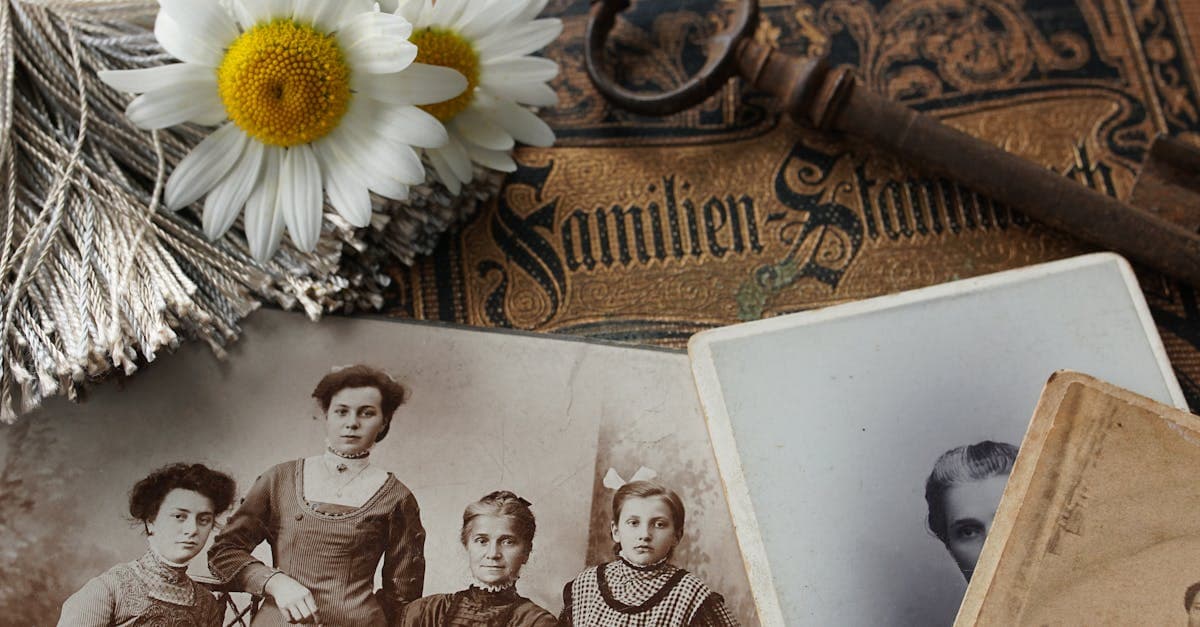
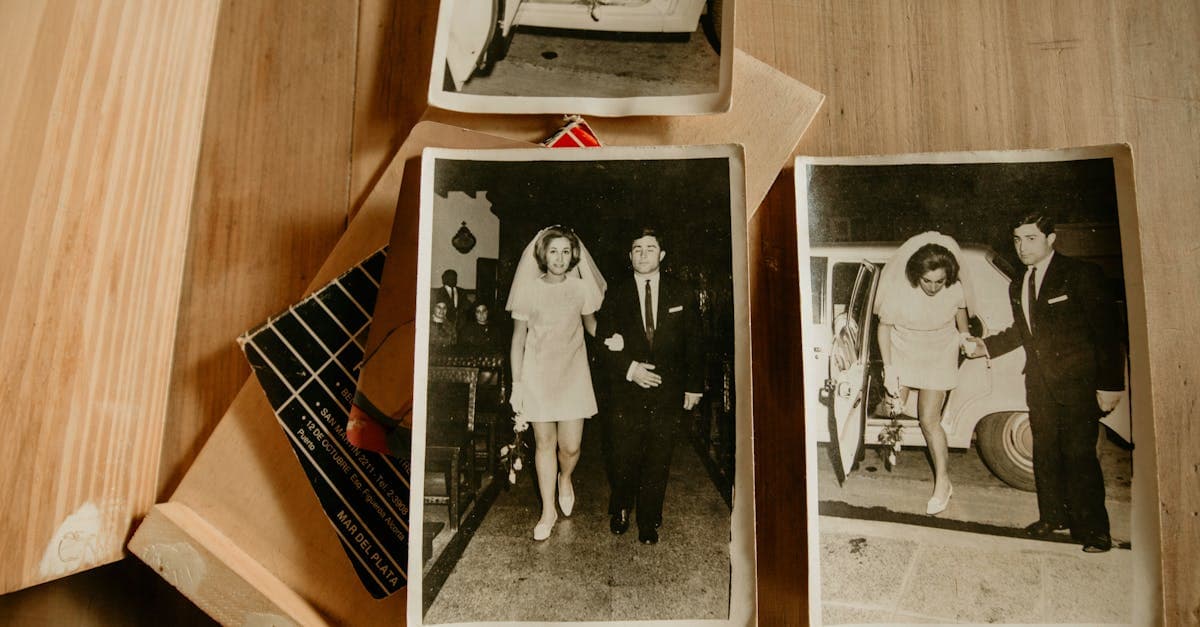
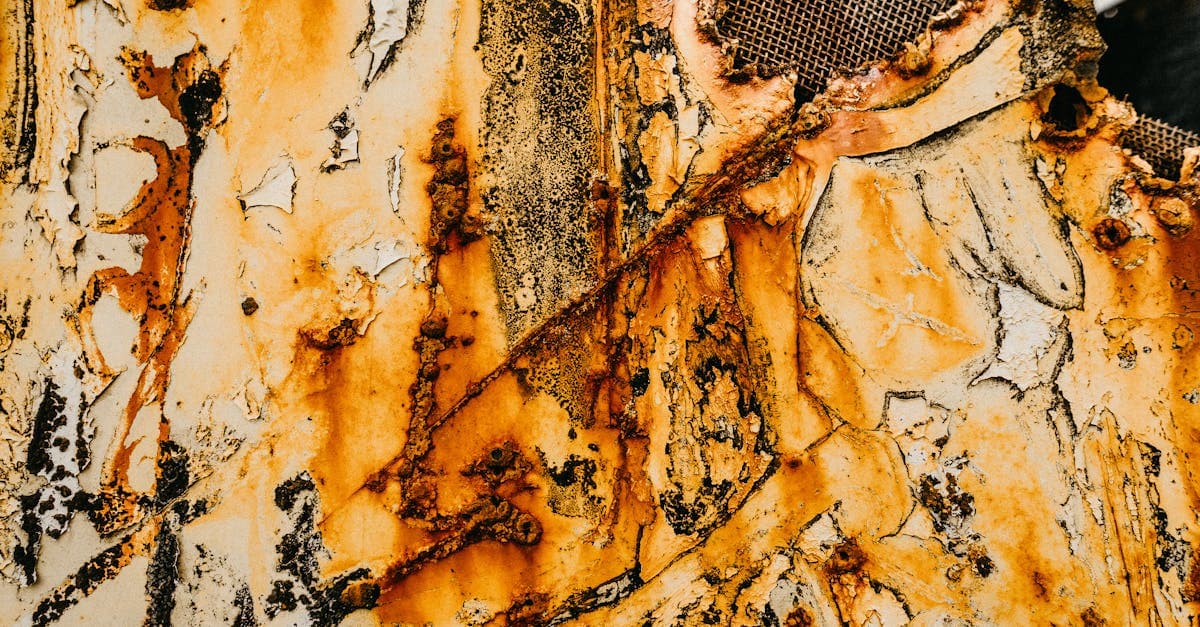
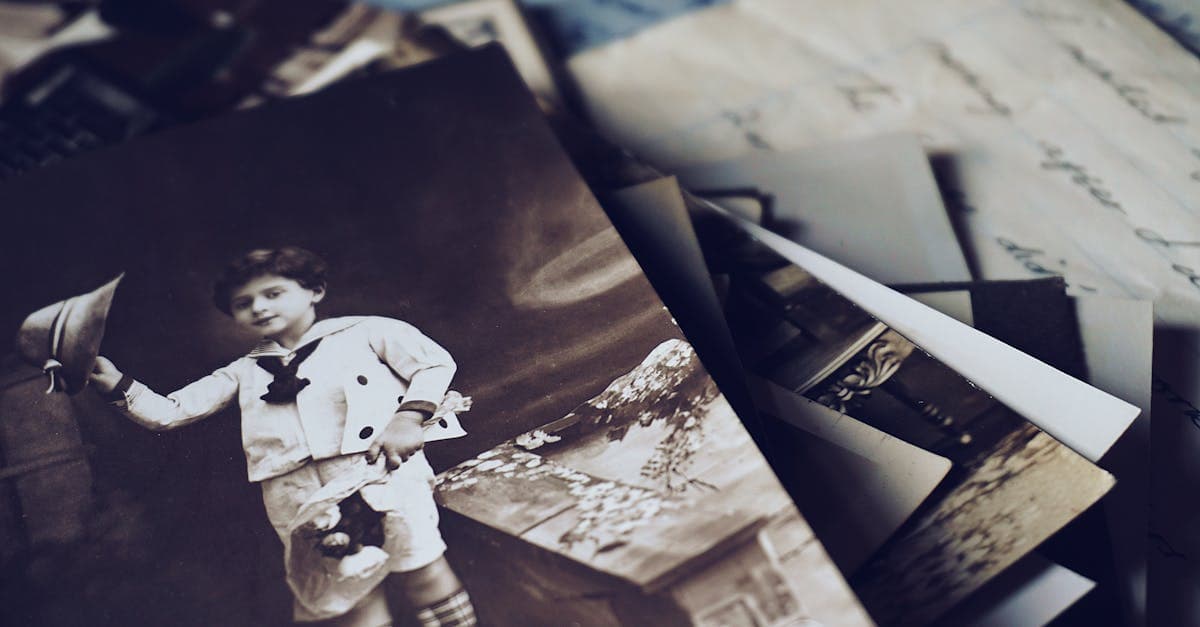
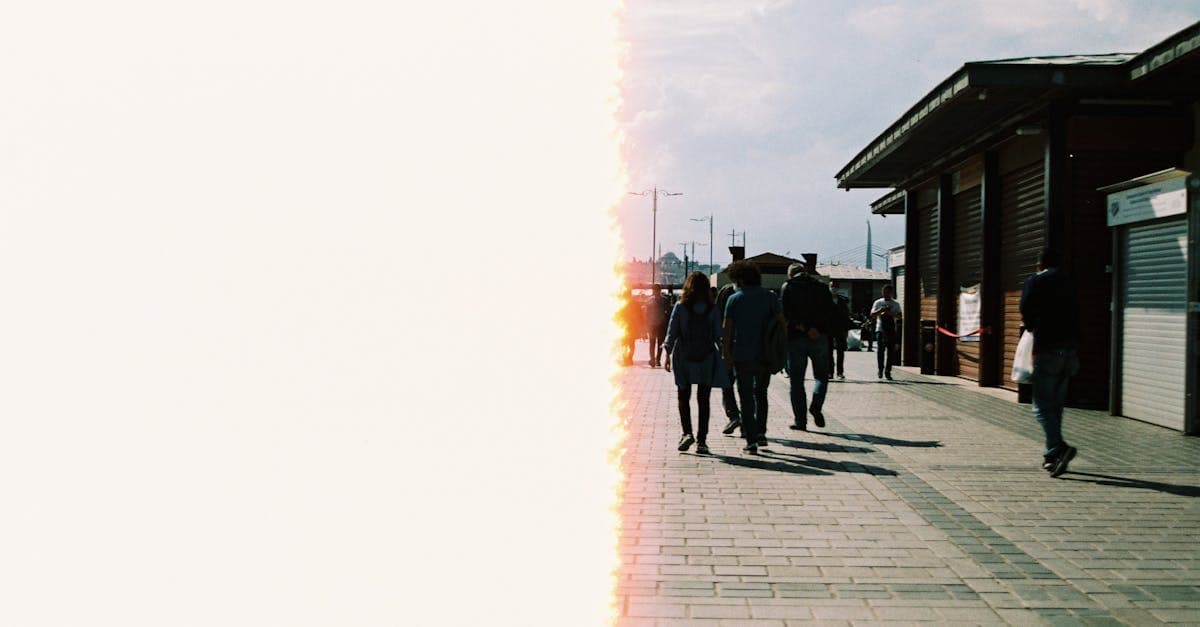
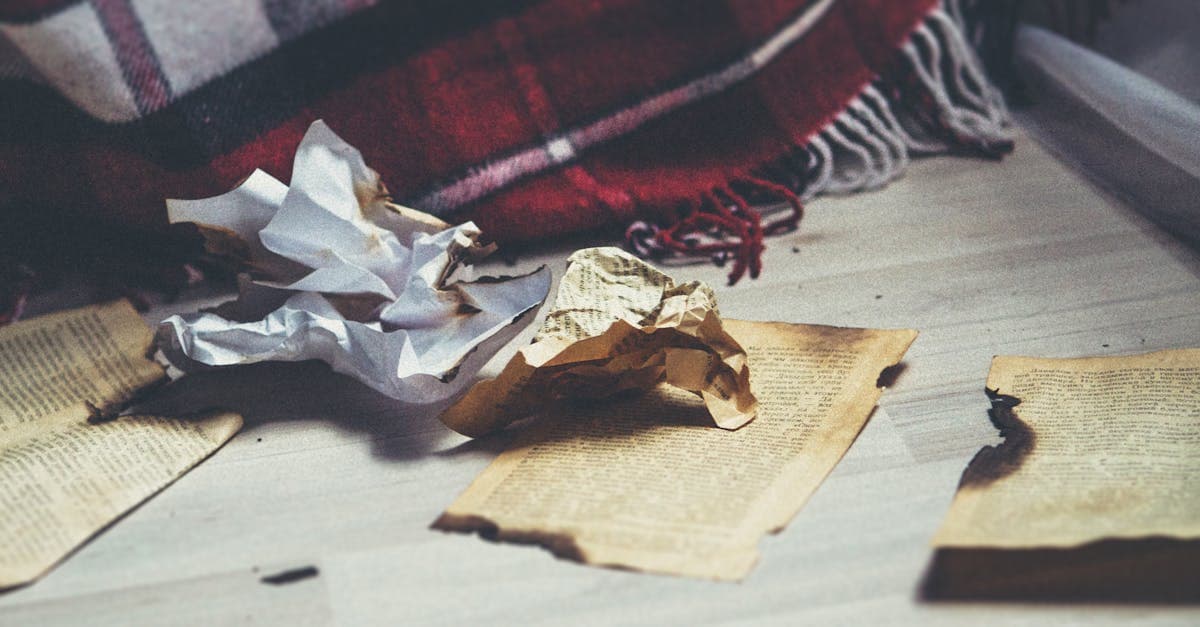
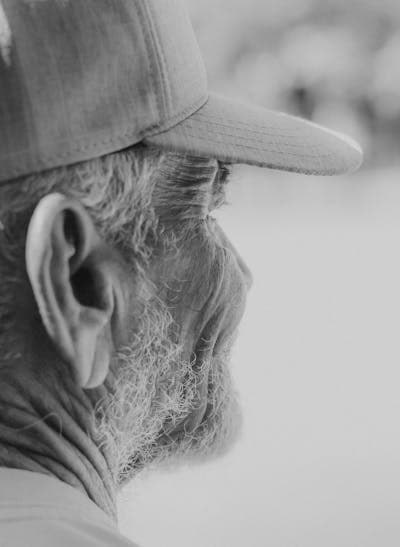
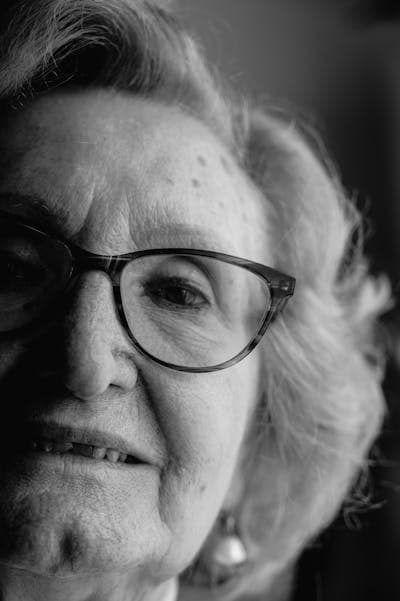
Result examples produced by PhotoFlip across common photo types and damage patterns. Each image is a restoration output, not a before/after comparison.



How AI Photo Restoration Works
Upload
Drop your old or damaged photo. JPG, PNG, or WebP up to 10MB.
AI Restores
Our restoration model analyzes damage patterns and rebuilds missing details.
Download
Compare before & after, then download in full resolution PNG.
What Our AI Restores
What Can AI Photo Restoration Fix?
Our AI is trained on millions of damaged and restored photo pairs, allowing it to recognize and repair a wide range of physical and digital degradation. Here is a closer look at each type of damage and how the restoration process handles it.
Scratches and Tears
Scratches are the most common form of old photo damage. They happen when prints are stacked without separators, stored loose in drawers, or handled without care over decades. Tears occur when photos are pulled from sticky albums or bent during moves. Our AI detects linear damage patterns across the image surface and fills in the missing information using surrounding pixel data. Fine surface scratches become invisible after a single pass, while deeper tears that remove the emulsion layer are reconstructed based on the context of adjacent areas. For photos with extensive tearing, running restoration in multiple passes produces the cleanest results.
Water Damage and Mold Stains
Water is one of the most destructive forces for photographs. Floods, basement leaks, and prolonged humidity cause paper to warp, colors to bleed, and mold to grow between emulsion layers. The AI identifies water stain boundaries and mold patterns as distinct damage types, removing discoloration while preserving the underlying image detail. Mild water damage restores almost perfectly. Severe cases where the image has partially dissolved require more reconstruction, but the result is still a dramatic improvement over the damaged original. For more detail, read our guide on fixing water-damaged photos.
Fading and Yellowing
Every photograph fades over time. Sunlight, heat, and chemical oxidation of the paper and emulsion turn vibrant colors into washed-out pastels and shift whites to yellow or brown. This damage is mathematically predictable, which makes it one of the easiest types for AI to correct. The model understands what natural skin tones, skies, and foliage should look like and adjusts the color channels to restore the original vibrancy. Yellowed photos often show the most dramatic before-and-after improvement of any damage type. For black-and-white photos that have yellowed, you can also add color with our colorization tool after restoring.
Dust and Scan Artifacts
When you digitize an old photo with a flatbed scanner, dust on the glass or on the print creates white or dark specks in the digital file. Low-quality scanners also introduce banding, moire patterns, and color noise that were never in the original photograph. The AI recognizes these digital artifacts as distinct from the actual photo content and removes them without affecting genuine image detail. Dust spots vanish entirely, banding is smoothed, and scanner noise is reduced to produce a clean, faithful representation of the original print.
Missing Areas and Heavy Degradation
Some photos have sections that are completely gone — corners torn off, chunks of emulsion flaked away, or areas dissolved by water. The AI handles these by analyzing what remains of the image and generating plausible content for the missing regions. Backgrounds, clothing patterns, and natural scenery reconstruct well because the model has strong priors for these subjects. Missing facial features benefit from following up with our dedicated face restoration tool, which specializes in reconstructing eyes, noses, and mouths with higher fidelity than general restoration alone.
AI Restoration vs Professional Restoration
Until recently, restoring a damaged photograph meant hiring a professional retoucher or learning Photoshop yourself. AI has changed the equation. Here is how the two approaches compare for everyday photo restoration work.
Professional Hand Restoration
- ×$25 - $150+ per photo depending on damage
- ×2 - 14 days turnaround time
- ×Quality varies by individual retoucher
- ×Requires finding and vetting a specialist
- ×Revisions cost extra time and money
- ×Better for museum-grade archival work
AI Photo Restoration
- Under $0.50 per photo with credit packs
- Results in under 30 seconds
- Consistent quality on every photo
- No appointments — upload and go
- Re-run as many times as you want
- Ideal for family photos and large collections
For most people restoring family photos, AI is the clear winner. The cost difference alone is significant: restoring a shoebox of 50 old photos with a professional retoucher could cost $1,250 or more, while AI restoration handles the same batch for under $25 and delivers results in minutes instead of weeks.
Professional hand restoration still has a place. If you own a historically significant photograph with large missing sections that require creative artistic reconstruction, or if you need archival-grade output for a museum exhibit, a skilled human retoucher can make nuanced decisions that AI cannot replicate. But for the other 99% of photo restoration work — the family reunions, the wedding portraits, the childhood snapshots — AI delivers faster, cheaper, and more consistent results. Credit packs start at $4.99 — try it and judge the quality for yourself.
Best Practices for Photo Restoration
A few simple preparation steps can dramatically improve your restoration results. The AI works best when it has a high-quality, well-framed input image to analyze.
- 1
Scan at 300+ DPI for the best results. Higher resolution gives the AI more pixel data to work with, producing sharper restorations. For small prints or wallet photos, scan at 600 DPI.
- 2
Crop out album borders, page edges, and any non-photo content before uploading. This helps the AI focus entirely on the actual image and avoids artifacts from border areas.
- 3
Always restore damage before colorizing. Run the restoration tool first to remove scratches, stains, and fading, then use the colorization tool on the clean result. This two-step approach produces significantly better color accuracy.
- 4
Use face restoration after general restoration for portraits. The dedicated face model in our face restore tool recovers sharper eyes, noses, and mouths than general restoration alone.
- 5
Upscale as the final step if you plan to print. Running restoration and face restoration before upscaling avoids amplifying damage artifacts into the enlarged image.upscale tool
- 6
For severely damaged photos, restore in multiple passes. Run the first restoration to fix the worst damage, then upload the result for a second pass to clean up remaining imperfections.
Full-pipeline restore
Under 30 seconds
Zero data storage
Photo Restoration FAQ
Our AI restores scratches, tears, creases, stains, water damage, mold spots, yellowing, and fading. It works on both scanned physical photos and digital images.
Most photos are restored in 10-30 seconds. The AI processes your image in memory and returns the result directly to your browser.
No account is required to get started. Credit packs start at $4.99 — buy credits only when you need them.
We support JPEG, PNG, and WebP files up to 10MB. For best results, upload the highest resolution scan you have — 300+ DPI scans work best.
Only to deliver your result. When you see a free preview, we keep the full-resolution result so you can download it after you create an account, and signed-in users keep a history they can delete at any time. We never sell your images. All transfers are encrypted with 256-bit TLS.
Yes. Our AI handles extensive damage including heavy scratching, tears, water damage, and severe fading. Very badly damaged photos may benefit from restoring first, then using face restoration and colorization as separate steps.
Credit packs start at $4.99 for 10 credits (about $0.50 per photo). Each restoration uses 1 credit, and credits never expire.
Only to deliver your result: a free preview waits for you to create an account, and signed-in users keep a history they can delete at any time. See our privacy policy for details.
Yes. Upload multiple photos and restore them in sequence. Each restoration uses 1 credit. The Popular pack ($19.99 for 75 credits) or Lifetime pack ($49 for 250 credits) works well for large collections.
Yes. Always restore damage first, then colorize. Restoring first removes scratches, stains, and fading so the colorization AI has clean source material to work with. Each step uses 1 credit.
Restore by Photo Type
Choose a photo type for specific guidance on scanning, damage patterns, and what AI can recover.
Restore by Decade
Decade-specific guides covering the film stocks, chemistry, and failure modes of each era.
Restore by Family Member
Guides tailored to the photos you inherit from specific relatives — different eras, different storage, different damage.
Family photos are consistently among the first things people grab in a fire or evacuation — documents can be reissued and devices replaced, but a lost photo is gone for good. Restoring them is an act of preservation for the people in the pictures and the generations who will want to see them.
Restore by Damage Type
Common damage patterns on old photos and how AI handles each one.
Related Guides
How to Restore Old Photos at Home
A complete walkthrough for digitizing and restoring your family photo collection without professional help.
How to Fix Water-Damaged Photos
What to do when photos have been through floods, leaks, or humidity damage — and how AI can help recover them.
How to Remove Scratches from Old Photos
Step-by-step techniques for removing scratches, from light surface marks to deep emulsion gouges.
How to Restore Faded Photos
Why photos fade over time and the best techniques for bringing color and contrast back to washed-out prints.
Start Restoring Your Old Photos Today
Credit packs start at just $4.99. Upload any old or damaged photo and see results in seconds.
Upload a Photo