How to Colorize Old Family Photos With AI
Your Family's History Deserves Color
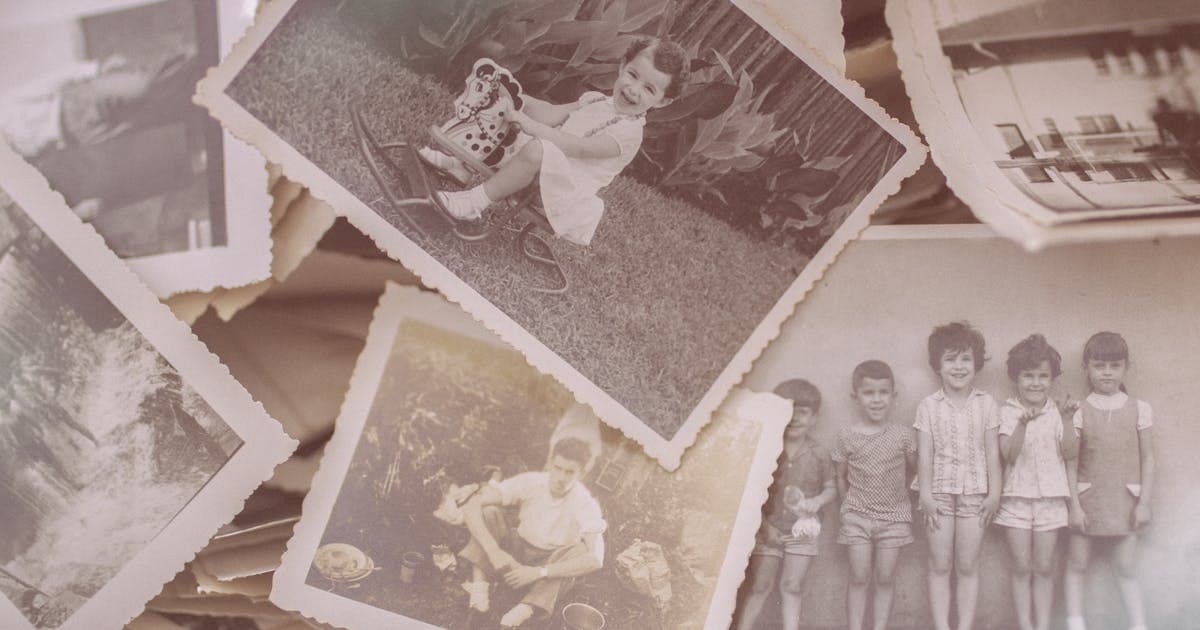
Somewhere in a shoebox, an album, or a dusty drawer, there are photographs of people who shaped your life. Your grandparents as teenagers. Your parents on their first date. Great-aunts and uncles you only know from stories.
These photos are almost always in black and white. And while they are beautiful in their way, they can feel distant — like looking at another world rather than your own family.
Adding color to these photos changes everything. Suddenly your grandmother's eyes have a color. The house she grew up in has a red door. The garden is green and alive. The people in the photos stop being historical figures and become family.
Preparing Old Family Photos for Colorization
Before you colorize, take a few minutes to prepare your photos. The quality of your input directly affects the quality of the result.
Scanning vs Photographing
If you have the physical print, scan it at 300 DPI or higher. A flatbed scanner produces dramatically better results than taking a phone photo of a printed picture. Phone photos introduce glare, uneven lighting, and perspective distortion that confuse the AI.
If scanning is not an option, photograph the print in even, diffused light (not direct sunlight), holding your phone as parallel to the photo as possible. Crop out any background.
For detailed scanning advice, see our guide on how to scan old photos for restoration.
Fix Damage Before Colorizing
Old family photos almost always have some damage — fading, yellowing, scratches, creases, water stains, or torn edges. The colorization AI works best on clean images.
Use PhotoFlip's restore tool to fix damage before colorizing. The restoration AI repairs scratches, fills in torn areas, and corrects fading. If faces are blurry, the face restore tool can sharpen facial features.
The ideal workflow:
- Scan the photo at high resolution
- Restore to fix damage and fading
- Face Restore to sharpen blurry faces
- Colorize to add natural color
- Upscale to increase resolution for printing
How to Colorize Your Family Photos
Step 1: Upload to PhotoFlip
Go to PhotoFlip's colorize tool and upload your prepared photo. The tool accepts JPEG, PNG, and WebP files.
Step 2: Let the AI Work
Click colorize. The AI analyzes the image and applies color in 5 to 15 seconds. It identifies faces, clothing, backgrounds, and objects, then assigns the most likely colors to each.
Step 3: Review and Download
Compare the before and after. If the colors look good, download the result in full resolution. If something looks off — an unusual color on a dress or background — you can try running it again for a slightly different interpretation.
What to Expect From AI Colorization
AI colorization is impressive, but it is worth understanding what it can and cannot do.
What it does well:
- Skin tones — consistently natural and accurate
- Skies — blue skies, clouds, sunsets
- Vegetation — grass, trees, gardens
- Common clothing colors — suits, dresses, uniforms
- Hair color — generally accurate for dark and light hair
What it guesses:
- Exact clothing colors — a blue dress might come back as green
- Eye color — the AI makes its best guess
- Interior decor — wall colors, furniture, curtains
- Specific car colors — the AI picks plausible colors
The key word is plausible. The AI produces colors that look natural and believable, even if they are not historically exact. For most family photos, this is more than enough to bring the image to life.
Stories From Users
Thousands of people use PhotoFlip to colorize family photos every week. The most common reaction is surprise — surprise at how real the people in the photos suddenly look, and surprise at the emotional impact of seeing a grandparent in color for the first time.
Some popular use cases:
- Memorial displays — colorized photos for funerals and memorial services
- Anniversary gifts — restoring and colorizing wedding photos from decades ago
- Family reunions — printing colorized photos of grandparents for display
- Genealogy projects — bringing family tree research to life
- Social media sharing — posting colorized photos of parents and grandparents
Printing Your Colorized Photos
Once you have a colorized result you are happy with, you will probably want to print it. Here are some tips:
- Upscale first — increase the resolution to at least 300 DPI at your desired print size
- Use a quality print service — services like Shutterfly, Mpix, or a local photo lab produce much better prints than home inkjet printers
- Choose the right paper — matte or lustre finish looks more natural for vintage photos than glossy
- Frame it — a simple frame with a mat makes a colorized family photo a meaningful gift
Frequently Asked Questions
How do I colorize old family photos online?
Upload your photo to PhotoFlip's colorize tool. One $9.99/mo plan unlocks every tool with 40 credits a month, and the AI processes your photo in seconds with no watermark.
Can I colorize a photo that is damaged or faded?
Yes. For best results, restore the photo first to fix damage, then colorize the restored version. PhotoFlip offers both tools.
Will the colors be historically accurate?
The AI produces plausible, natural-looking colors based on patterns learned from millions of photos. Skin tones and natural elements are very accurate. Specific clothing or object colors are the AI's best guess.
Can I colorize a photo of someone who has passed away?
Absolutely. This is one of the most common and meaningful uses of AI colorization. Many people colorize photos of grandparents, parents, and loved ones as memorial tributes or gifts for family members.
What resolution do I need for a good result?
A 300 DPI scan produces excellent results. Lower resolution photos still work but may show less detail in the colorized output. You can upscale the result afterward if you need a larger print.
Can I colorize photos from the 1800s?
Yes. As long as the photo is in reasonable condition and the scan is clear, AI colorization works on photos from any era. Very old photos may benefit from restoration first.