How to Digitize and Restore Family Photos
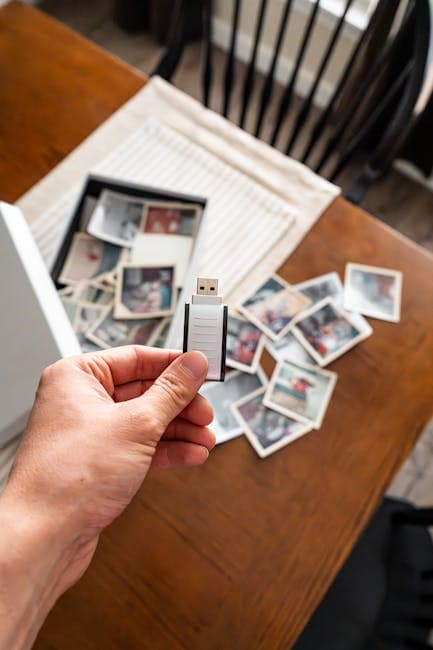
Your Family Photos Won't Last Forever
Every family has a collection of printed photographs — in albums, shoeboxes, drawers, and forgotten corners of closets. These prints are physically degrading every day. Paper yellows, dyes fade, emulsion cracks, and environmental damage accumulates silently. A flood, fire, or move could destroy them in an instant.
Digitizing your family photo collection is the single most important thing you can do to preserve these memories. Once digital, they can be backed up in multiple locations, shared with relatives, and restored using AI.
Planning Your Project
Before diving in, take stock of your collection and set up an efficient workflow.
Gather Everything
Collect photos from every source: albums, frames, shoeboxes, wallets, filing cabinets, and relatives' collections. Ask family members to contribute — aunts, uncles, and grandparents often have photos you've never seen.
Sort and Prioritize
Organize photos roughly by era or family branch. Prioritize the most fragile and most important photos first — if something happens before you finish, you'll have saved the irreplaceable ones.
Estimate the Scope
A typical family collection ranges from 200 to 2,000+ prints. At 2-3 minutes per scan (including handling), a 500-photo collection takes roughly 20-25 hours. Break this into manageable sessions of 50-100 photos each.
Choosing Your Scanning Method
Flatbed Scanner (Recommended)
A flatbed scanner produces the highest quality digital copies. Recommended models:
- Budget ($60-$100): Canon CanoScan LiDE 400 or Epson Perfection V39 — good for most prints
- Mid-range ($200-$350): Epson Perfection V600 — includes transparency adapter for negatives and slides
- Professional ($500+): Epson Perfection V850 — museum-grade scanning for serious archivists
Scanning Settings
- Resolution: 300 DPI for standard prints (4x6, 5x7). 600 DPI for small prints (wallet size, passport photos). 1200+ DPI for negatives and slides.
- Color mode: Always scan in color, even for B&W photos. Color scanning captures subtle tonal information and helps AI distinguish damage from image content.
- File format: Save as TIFF for archival purposes (lossless), or high-quality JPEG (quality 95+) for a balance of quality and file size. Avoid low-quality JPEG compression.
Smartphone Scanning
If you don't have a scanner, modern smartphones produce surprisingly good results:
- Google PhotoScan (free, iOS/Android) — takes multiple shots and stitches them together to eliminate glare
- Microsoft Lens (free, iOS/Android) — auto-crops and adjusts perspective
- Tips: Use indirect natural light, avoid overhead lights that create glare, hold the phone parallel to the photo surface, shoot on a contrasting background
Photo Scanning Services
Local and mail-in services will scan your collection for you:
- Local shops: Costco, CVS, and camera stores typically charge $0.25-$0.50 per scan
- Mail-in services: ScanMyPhotos, GoPhoto, and similar services handle bulk collections at $0.08-$0.20 per scan
- Turnaround: 1-3 weeks depending on volume
Organizing Your Digital Collection
File Naming
Use a consistent naming convention: YYYY-MM_description.jpg — for example, 1965-06_mom-dad-wedding.jpg. If the exact date is unknown, use the decade: 1970s_grandma-garden.jpg.
Folder Structure
Keep it simple:
Family Photos/
├── 1940s-1950s/
├── 1960s/
├── 1970s/
├── 1980s/
├── 1990s/
├── 2000s/
└── Unknown Dates/
Metadata
Add tags and descriptions while you remember (or while relatives can identify people). Photo management tools like Google Photos, Apple Photos, and Adobe Lightroom support tagging and face recognition.
Restoring Your Digitized Photos
With your photos scanned, AI restoration can repair decades of damage in seconds per image.
Batch Workflow
For large collections, work through photos in batches:
- General restoration — upload each photo to the restore tool for overall damage repair: scratches, fading, stains, and discoloration
- Face restoration — for all photos containing people, follow up with the face restore tool to enhance facial detail
- Colorization — for B&W photos you want in color, use the colorize tool. This is optional but transformative for connecting with older generations' stories
- Upscaling — for small originals that you want to print larger, the upscale tool increases resolution up to 4x
Prioritization Tips
- Start with the most damaged photos — these benefit the most from restoration
- Focus on photos with people — family faces are the highest-value content
- Process duplicates last — if you have multiple copies of the same photo, restore the best-condition copy
Sharing with Family
Digitized, restored photos become shareable memories:
- Create a shared Google Drive or iCloud folder — give access to all family members
- Print favorites — restored photos make meaningful gifts, especially for older relatives
- Build a photo book — online services like Shutterfly, Mixbook, and Artifact Uprising create professional books
- Share before/after comparisons — the transformation is often stunning and family members appreciate seeing the work
Long-Term Preservation
The 3-2-1 Backup Rule
Maintain 3 copies of your photo collection on 2 different media types with 1 copy offsite:
- Primary: Your computer's hard drive
- Local backup: An external hard drive stored in a different room
- Cloud backup: Google Drive, iCloud, Dropbox, or Amazon Photos
Preserving the Originals
Even after digitizing, keep the original prints:
- Store in acid-free boxes with acid-free interleaving paper
- Keep in a climate-controlled room (65-70F, 30-40% humidity)
- Away from basements, attics, and external walls
- Never store in plastic bags — they trap humidity
Get Started Today
The best time to digitize your family photos was 20 years ago. The second best time is today. Start with a small batch, scan them, and upload to the restore tool to see what AI can recover. Explore all our AI restoration tools for the complete workflow.