How to Remove Backgrounds from Photos with AI
What Is AI Background Removal?
AI background removal uses deep learning models to separate the subject of a photo from its background. The AI analyzes the image, identifies the primary subject — a person, product, or object — and creates a precise cutout with a transparent or solid-color background.
Unlike manual selection with tools like Photoshop's pen tool or lasso, AI segmentation handles complex edges like hair, fur, and semi-transparent materials automatically. What used to take a skilled designer 15-30 minutes now happens in seconds.
Common Use Cases
Product Photography
E-commerce sellers need clean, white-background product images. Marketplace platforms like Amazon and eBay require isolated product shots. AI background removal lets you shoot products anywhere — your kitchen table, a garage, outdoors — and swap in a professional white or gradient background afterward.
Professional Headshots
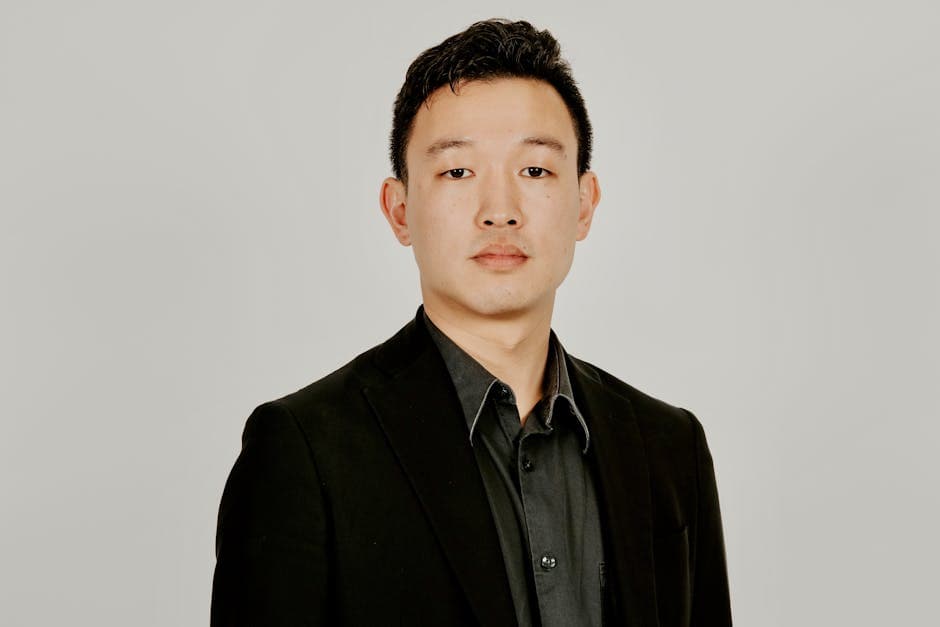
LinkedIn profiles, company websites, and conference speaker pages all need polished headshots. Rather than booking a studio session, you can take a photo against any wall, remove the background, and replace it with a clean gradient or corporate backdrop.
Design and Marketing
Graphic designers constantly need cutout images for flyers, social media posts, presentations, and advertisements. AI removal eliminates the tedious manual masking step, freeing up time for creative work.
Personal Projects
Passport photos, custom phone wallpapers, photo collages, greeting cards — background removal unlocks creative possibilities for personal use too.
How AI Segmentation Works
Modern background removal relies on semantic segmentation models. These neural networks have been trained on millions of labeled images where every pixel is classified as either "foreground" or "background."
The process works in three stages:
- Detection — The model identifies the main subject in the image
- Segmentation — Every pixel is assigned a probability of belonging to the foreground
- Matting — Edge refinement handles tricky boundaries like hair strands and semi-transparent areas
The best models use a combination of coarse segmentation for the overall shape and fine-grained matting for edge details. This dual approach produces clean cutouts even with challenging subjects.
Combining Background Removal with Photo Restoration
Background removal works best when the source image is high quality. If you are working with an old or damaged photo, running restoration first produces significantly better cutouts. Here is a recommended workflow:
For Old or Damaged Photos
- Restore first — Use our restore tool to fix scratches, tears, and fading
- Enhance faces — Run face restore to sharpen facial features
- Upscale — Increase resolution to get crisp details at the edges
- Then remove background — The AI segmentation model gets much cleaner edges from a high-quality source
For Professional Headshot Preparation
The ideal workflow for turning a casual photo into a professional headshot:
- Face restore — Use our face restore tool to enhance facial clarity and fix any blurriness
- Upscale — Boost resolution so the final image looks sharp at any size
- Remove background — Apply background removal to isolate the subject
- Add new background — Place the cutout on a professional gradient or solid color
This pipeline turns a quick phone selfie into a headshot that looks like it came from a professional studio.
Tips for Clean Cutouts
Getting the best results from AI background removal comes down to input image quality:
- Good lighting — Even lighting reduces harsh shadows that confuse the AI
- Contrast between subject and background — The more distinct the subject is from the background, the cleaner the cutout
- Avoid matching colors — A person wearing green against a green wall makes segmentation harder
- Keep subjects fully in frame — Cropped limbs or cut-off edges create unnatural cutouts
- Higher resolution helps — More pixels give the AI more detail to work with, especially around hair and fine edges
When Results Need Manual Touch-Up
AI handles 90% of cases perfectly, but some scenarios remain challenging:
- Very thin or wispy hair against a busy background
- Glass, smoke, or other transparent objects
- Multiple overlapping subjects at different depths
- Extremely low-resolution or heavily compressed images
For these edge cases, a quick manual touch-up in a photo editor can clean up any imperfections the AI missed.
Why PhotoFlip Pairs Well with Background Removal
PhotoFlip specializes in AI photo restoration — fixing damage, enhancing faces, adding color to black-and-white images, and increasing resolution. While we do not offer background removal directly, our tools are the perfect preparation step.
A restored, enhanced, and upscaled photo produces dramatically better background removal results compared to feeding a damaged or low-resolution original into a removal tool.
Explore all our restoration tools to prepare your photos for any downstream editing, including background removal, compositing, and printing.
Get Started
Upload your photo to PhotoFlip, restore and enhance it, then take the polished result to your preferred background removal tool. The difference in quality will be immediately obvious.
Start restoring now — fast, private, and one simple $9.99/mo plan with every tool unlocked.