How to Restore Faded Photos — Fix Color Loss and Yellowing
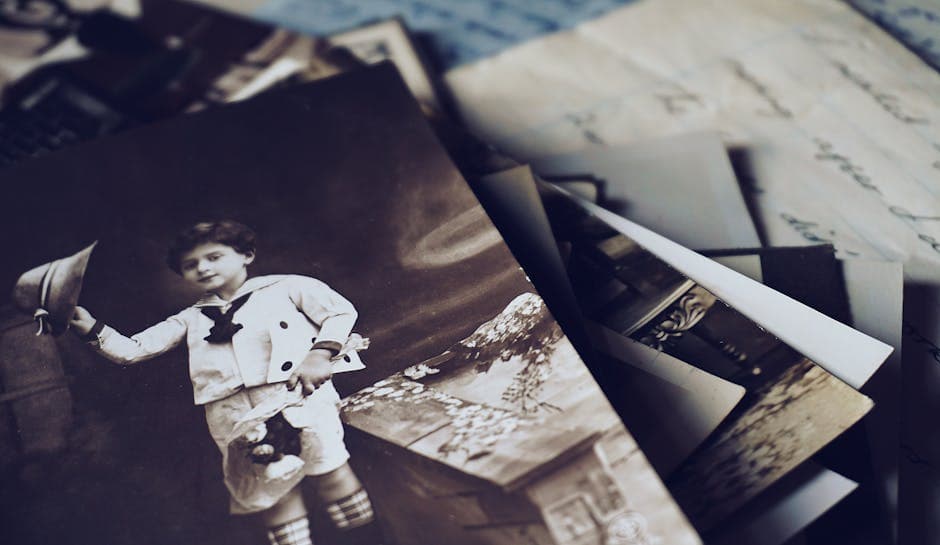
Why Do Photos Fade?
Every printed photograph is in a slow battle against time. The vibrant colors from the day the photo was printed gradually weaken, shift, and disappear. Understanding why this happens helps you both fix existing damage and prevent future fading.
UV Exposure
Sunlight is the single biggest destroyer of photographs. Ultraviolet radiation breaks down the chemical dyes in photo paper. Photos displayed on walls, mantels, or near windows degrade fastest. Even indirect sunlight causes damage over years and decades.
Chemical Degradation
The dyes used in color photography — cyan, magenta, and yellow — break down at different rates. Magenta dyes tend to be the most stable, while cyan and yellow degrade faster. This is why many old color photos develop a pinkish or magenta cast. The other colors have faded away, leaving magenta behind.
Humidity and Moisture
High humidity accelerates chemical reactions in photo paper. Moisture causes dyes to bleed, paper to warp, and creates an environment where mold can develop. Photos stored in damp basements or attics suffer the most.
Poor Storage Conditions
Photos stacked directly on top of each other, stored in PVC plastic sleeves, or kept in non-archival albums can experience chemical transfer. Acidic paper in old albums leaches into photos, causing yellowing and brown spotting known as foxing.
Types of Fading
Not all fading looks the same. Recognizing the type of damage helps set expectations for restoration.
Overall Yellowing
The most common type of fading. The entire image develops a warm yellow or sepia-like cast. Whites turn cream or ivory. This happens when all three color dyes degrade, but yellow breakdown products accumulate on the paper surface.
Selective Color Loss
Individual color channels fade at different rates. You might see a photo where blues have disappeared entirely, greens have shifted to brown, but reds remain relatively intact. This creates an unnatural color balance that makes the image look alien.
Contrast Loss
Photos lose their dynamic range over time. Deep blacks become gray, bright whites become dull. The overall image looks flat and washed out, like looking through a dirty window. Details that were once clearly visible become muddy and hard to distinguish.
Edge Fading
Photos stored in frames often show a pattern where the edges — exposed to more light around the mat border — have faded more than the center. This creates an uneven restoration challenge.
How AI Restoration Handles Fading
AI restoration models have been trained on thousands of photo pairs: faded originals alongside their properly color-balanced versions. The AI learns to recognize and reverse specific degradation patterns.
The process works in several layers:
- Color cast detection — The AI identifies the overall color shift (yellowing, magenta cast, blue loss)
- White point correction — Recalibrating what "white" should look like in the image
- Channel rebalancing — Independently adjusting red, green, and blue channels to restore natural color
- Contrast restoration — Expanding the dynamic range to bring back deep blacks and bright whites
- Detail enhancement — Recovering subtle details that were hidden by the fading
Step-by-Step: Restore a Faded Photo with PhotoFlip
Step 1: Scan Your Photo
Use a flatbed scanner at 300 DPI or higher. If you do not have a scanner, take a photo with your phone in bright, even lighting — avoid flash, which creates glare and hotspots.
Step 2: Upload to PhotoFlip
Go to our restore tool and upload your scanned image. We accept JPG, PNG, and WebP up to 10MB.
Step 3: Let the AI Work
Our restoration AI analyzes the fading pattern and applies corrections. Processing takes 10-30 seconds depending on image size.
Step 4: Review and Download
Use the before/after comparison slider to evaluate the restoration. Download your restored photo in full resolution.
When to Combine Restore and Colorize
Some photos have faded so severely that they are essentially monochrome — all color information is gone. For these cases, a two-step approach works best:
- Restore — Fix contrast, remove yellowing, and repair damage with our restore tool
- Colorize — Add color back using our colorize tool, which applies historically informed AI colorization
This combination rescues even the most severely degraded color photos.
Preventing Future Fading
Once you have restored your photos digitally, protect the originals from further damage:
- Archival sleeves — Store photos in acid-free, lignin-free polypropylene sleeves
- UV-filtering glass — If displaying photos, use frames with UV-protective glass or acrylic
- Cool, dry storage — Keep photos in climate-controlled spaces, ideally 65-70 degrees Fahrenheit with 30-40% relative humidity
- Avoid direct sunlight — Never display irreplaceable originals in direct or strong indirect sunlight
- Digital backups — Scan everything at high resolution. Digital files do not fade. Store copies in multiple locations — local drive, cloud storage, and a USB backup
The Best Time to Restore Is Now
Fading is progressive. Your photos are more faded today than they were yesterday, and they will be more faded tomorrow. The sooner you scan and digitally restore them, the more original detail the AI has to work with.
Restore your faded photos now — fast, private, and online.