How to Restore Old Photos at Home (2026 Guide)
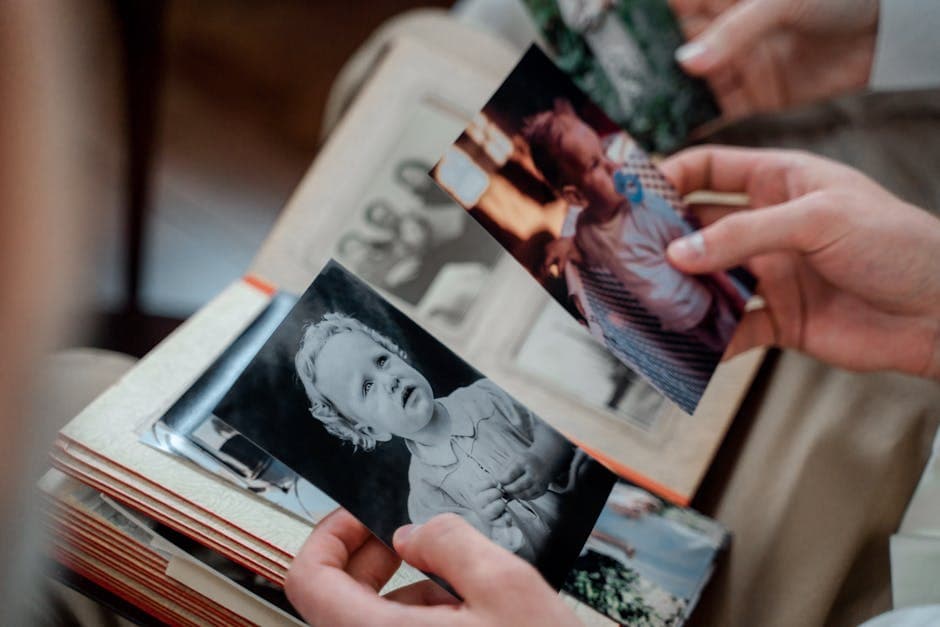
Why Restore Photos at Home?
Professional photo restoration services charge anywhere from $25 to $200 per image. If you have a shoebox full of old family photos, that adds up fast. The good news: with the right scanning technique and modern AI tools, you can restore old photos at home affordably — no Photoshop skills required.
This guide walks you through the entire process, from scanning a fragile print to downloading a restored, colorized, high-resolution result.
Step 1: Scanning Your Old Photos
The quality of your scan determines the quality of your restoration. A little effort here goes a long way.
Flatbed Scanner vs. Phone Camera
A flatbed scanner is the gold standard. Set it to 300 DPI minimum for standard prints, and 600 DPI for small prints like wallet-sized photos or 35mm negatives. Scan in color, even if the photo is black and white — this preserves subtle tonal variations and any remaining color data.
If you don't have a scanner, a phone camera works surprisingly well in 2026. Use these tips:
- Shoot in natural daylight, not under overhead lights (they cause glare and uneven exposure)
- Place the photo flat on a dark surface to avoid white-edge bleed
- Hold the phone directly above the photo, parallel to the surface
- Use your phone's document scanning mode if available — it auto-crops and corrects perspective
- Take multiple shots and pick the sharpest one
Handling Fragile Originals
Old photos are delicate. Wear cotton gloves or handle them by the edges. If a photo is stuck to glass or an album page, do not force it apart — scan it as-is and let the AI handle the imperfections. Forcing a stuck photo apart can destroy it permanently.
Step 2: Digital Cleanup Before Restoration
Before running AI restoration, a quick cleanup improves results:
- Crop out borders — remove album page edges, tape marks, and damaged corners that aren't part of the image
- Straighten the image — rotate it so the horizon or architectural lines are level
- Remove loose debris — use any basic photo editor to clone out obvious specks that landed on the scanner glass
You don't need to fix scratches, stains, or fading — that's what the AI handles.
Step 3: AI Restoration with PhotoFlip
This is where the magic happens. PhotoFlip offers four AI tools that handle different types of damage.
Restore Damage
Start with the restore tool. Upload your scanned photo and the AI will automatically detect and repair scratches, tears, stains, fading, and discoloration. This is your first pass and handles the bulk of the work.
Fix Blurry Faces
Old photos often have soft or degraded faces, especially in group shots. The face restore tool uses specialized AI models trained specifically on facial features. It reconstructs eyes, mouths, and skin texture that general restoration can miss.
Run this after the general restore for best results — the face model works better on a clean image.
Add Color to B&W Photos
Have a black and white photo from the 1940s or earlier? The colorize tool adds historically accurate color based on context clues like clothing styles, vegetation, and skin tones. The AI has been trained on millions of era-specific photographs so uniform colors, car paint, and interior decor match the period.
Increase Resolution
Old prints are small, and scans of small prints look pixelated when enlarged. The upscale tool increases resolution up to 4x using AI super-resolution. A grainy 2-megapixel scan becomes a sharp 8-megapixel image suitable for large reprints.
Step 4: The Recommended Workflow
For the best results, process your photos in this order:
- Restore — fix damage, scratches, and stains first
- Face Restore — sharpen faces while the image is clean
- Colorize — add color after damage is repaired (color AI performs better on clean images)
- Upscale — increase resolution last so the AI has the most detail to work with
Each step builds on the previous one. Skipping ahead or reversing the order can produce lower-quality results.
Step 5: Printing Your Restored Photos
Once your photo is restored, you'll want physical copies. For the best prints:
- Use a photo printing service — Costco, Shutterfly, or your local print shop. Home inkjet printers rarely match lab quality.
- Print on lustre or matte paper — these finishes hide minor imperfections better than glossy
- Match the original size — a 4x6 original printed at 4x6 will look sharpest. Enlarge only if you used the upscale tool.
- Order a test print first — colors on screen don't always match print output. Order one copy before printing twenty.
Step 6: Long-Term Storage
Protect your restored photos — both the digital files and any new prints.
Digital Storage
- Save the restored file as a PNG (lossless) for archival quality
- Keep copies in two locations — cloud storage (Google Drive, iCloud, Dropbox) and an external drive
- Name files descriptively:
grandparents-wedding-1952-restored.pngbeatsIMG_4392.png
Physical Storage
- Store prints in acid-free albums or archival sleeves
- Keep them in a cool, dry place away from direct sunlight
- Avoid basements (humidity) and attics (heat fluctuations)
Get Started
You don't need expensive software, professional training, or hours of manual retouching. Upload your first photo to the restore tool and see the difference AI makes in seconds. It runs in your browser, one $9.99/mo plan unlocks every tool with 40 credits a month, and your photos are not retained after processing.