How to Backup and Preserve Digital Photos Forever
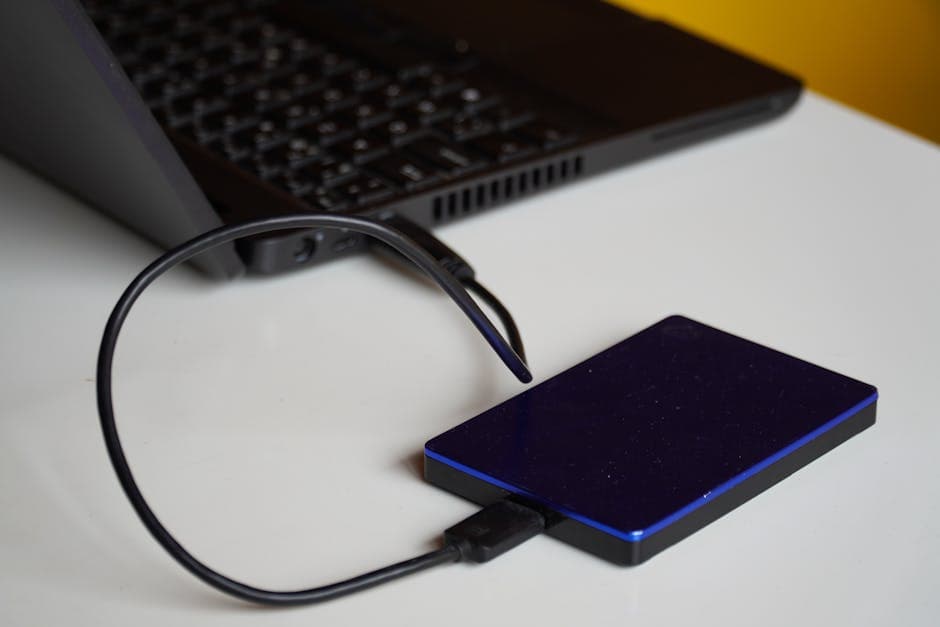
Your Digital Photos Are Not Safe
You have thousands of digital photos — on your phone, your laptop, old hard drives, cloud accounts, and scattered across messaging apps. But how many of those photos would survive if your phone was stolen, your laptop's hard drive failed, or a cloud service shut down?
Hard drives fail. Phones get lost. Cloud services change terms and storage limits. Memory cards corrupt. Without a deliberate backup strategy, you're one hardware failure away from losing irreplaceable memories.
This guide builds a backup system that protects your photos against every realistic threat.
The 3-2-1 Backup Rule
The gold standard for data protection is the 3-2-1 rule:
- 3 copies of every photo
- 2 different storage media (e.g., hard drive + cloud)
- 1 copy offsite (physically in a different location)
This protects against individual device failure (you have multiple copies), media-type failure (different technologies fail differently), and physical disasters like fires and floods (your offsite copy survives).
Building Your Backup System
Layer 1: Primary Storage (Your Computer)
Your computer's internal storage is the working copy of your photo library. This is where you organize, edit, and access photos daily.
Set up:
- Designate a single folder for all photos (e.g.,
Pictures/Photos) - Organize by year and event:
2026/04-April-Birthday/ - Import all phone photos to this central location regularly
Layer 2: Local Backup (External Drive)
An external hard drive or SSD provides a complete local backup that you control.
Recommended hardware:
- External HDD (2-4 TB): $60-$100. Good for bulk photo storage.
- External SSD (1-2 TB): $80-$150. Faster, more durable, no moving parts.
- NAS (Network Attached Storage): $200-$500+ for the enclosure plus drives. Best for families with multiple devices.
Set up:
- Connect the drive and run a backup weekly or monthly
- On Mac: Use Time Machine for automated backups
- On Windows: Use File History or third-party tools like Acronis or Macrium
- Alternatively, simply copy your Photos folder to the external drive manually
Important: Store the external drive in a different room than your computer. If both are on the same desk and a pipe bursts above them, you lose both.
Layer 3: Cloud Backup (Offsite)
Cloud storage is your offsite backup — it survives fires, floods, theft, and any physical disaster that hits your home.
Cloud storage options:
| Service | Free Tier | Paid Plans | Best For |
|---|---|---|---|
| Google Drive | 15 GB | 100 GB/$2/mo, 2 TB/$10/mo | Android users, Google ecosystem |
| iCloud | 5 GB | 50 GB/$1/mo, 200 GB/$3/mo, 2 TB/$10/mo | Apple users |
| Dropbox | 2 GB | 2 TB/$12/mo | Cross-platform sharing |
| Amazon Photos | Unlimited (Prime) | Included with Prime ($139/year) | Prime members — unlimited full-resolution photo storage |
| Backblaze | None | $7/mo (unlimited backup) | Full computer backup including photos |
Best value: Amazon Photos with a Prime membership provides unlimited full-resolution photo storage. For dedicated backup without thinking about it, Backblaze backs up your entire computer for $7/month.
Phone Photos: The Most Vulnerable
Phone photos are the most at risk because phones get lost, stolen, dropped in water, and replaced every few years. Most people's primary photo archive is on their phone, and most people have no backup beyond what their phone manufacturer provides.
Automatic Phone Backup
Enable cloud backup for your phone photos:
- iPhone: Settings > [Your Name] > iCloud > Photos > iCloud Photos (ON)
- Android: Google Photos > Settings > Backup (ON)
- Samsung: Settings > Accounts > Samsung Cloud > Gallery (ON)
Periodic Computer Transfer
Cloud backup from your phone is good, but having copies on your computer adds protection:
- iPhone to Mac: Connect via cable or AirDrop, import via Photos app
- iPhone to Windows: Connect via cable, open the phone in File Explorer, copy the DCIM folder
- Android to any computer: Connect via cable, open the phone's storage, copy the DCIM folder
- Wireless: Use Google Photos to sync to your computer, or use third-party apps like PhotoSync
Preserving Restored Photos
If you've invested time and money in restoring old family photos with AI, those restored files deserve the same backup treatment as your originals.
Save in Lossless Format
Restored photos should be saved as PNG or TIFF — lossless formats that preserve every detail of the restoration. JPEG files degrade slightly each time they're opened and re-saved.
Separate Originals from Restorations
Maintain two folders:
Scans/— original unedited scans of physical photosRestored/— AI-restored versions from the restore tool, face restore, colorize, and upscale tools
Keep both. If better AI tools emerge in the future, you can re-process your original scans for improved results.
Metadata and Labels
Add information while you know it:
- Who is in the photo
- When and where it was taken
- Family relationships
- Any stories associated with the image
This metadata is often more valuable than the photo itself. Write it in the filename, add it to image metadata fields, or maintain a simple spreadsheet alongside your photo folders.
Long-Term Format Considerations
Will Your Files Be Readable in 50 Years?
JPEG has been the dominant photo format since the 1990s. Every device and application supports it, and this is unlikely to change. JPEG is a safe long-term format.
TIFF has been an archival standard since the 1980s. Libraries and museums rely on it. It will remain readable.
PNG is widely supported and likely to remain so.
Proprietary formats (RAW files from specific camera manufacturers) are riskier. Convert to DNG (Adobe's open RAW standard) or TIFF for archival purposes.
Storage Media Longevity
- Hard drives (HDD): 3-10 year lifespan with regular use. Can fail without warning. Replace every 5 years.
- Solid state drives (SSD): 5-10+ years. More durable than HDD, but can lose data if left unpowered for years.
- Cloud storage: Persists as long as you maintain your account and the service exists. Major services (Google, Apple, Amazon) are likely to persist for decades.
- USB flash drives: Not recommended for long-term storage. Data retention degrades after 5-10 years, especially in cheap drives.
- Optical discs (DVD, Blu-ray): Archival-grade discs (M-DISC) claim 1000+ year lifespans. Good for cold archival storage but impractical for everyday access.
The Migration Strategy
No storage medium lasts forever. Plan to migrate your photo archive to new media every 5-10 years:
- Copy your entire photo collection to new storage (new external drive, new cloud tier)
- Verify the copy is complete and files are readable
- Keep the old storage as an additional backup for one more cycle
- Repeat
Your Photo Backup Checklist
- All phone photos backed up to cloud automatically
- Phone photos transferred to computer periodically
- Computer photos backed up to external drive (weekly or monthly)
- Computer photos backed up to cloud storage
- External drive stored in a different room than the computer
- Original scans saved separately from restored versions
- Restored photos saved in lossless format (PNG or TIFF)
- Photos labeled with names, dates, and relationships
- Backup drives replaced every 5 years
- Cloud backup account in good standing
Start Protecting Your Photos Today
Back up what you have now. Then start scanning and restoring your physical photos — upload them to the restore tool to fix damage and degradation, use face restore for portraits, and save the results in lossless format with proper backups. A photo that exists only as a single print is one disaster away from being lost forever. A photo backed up across three locations will outlast everyone in it. See all tools at photoflipai.com/tools.