Restoring Your Grandmother's Photos: A Step-By-Step Walk-Through
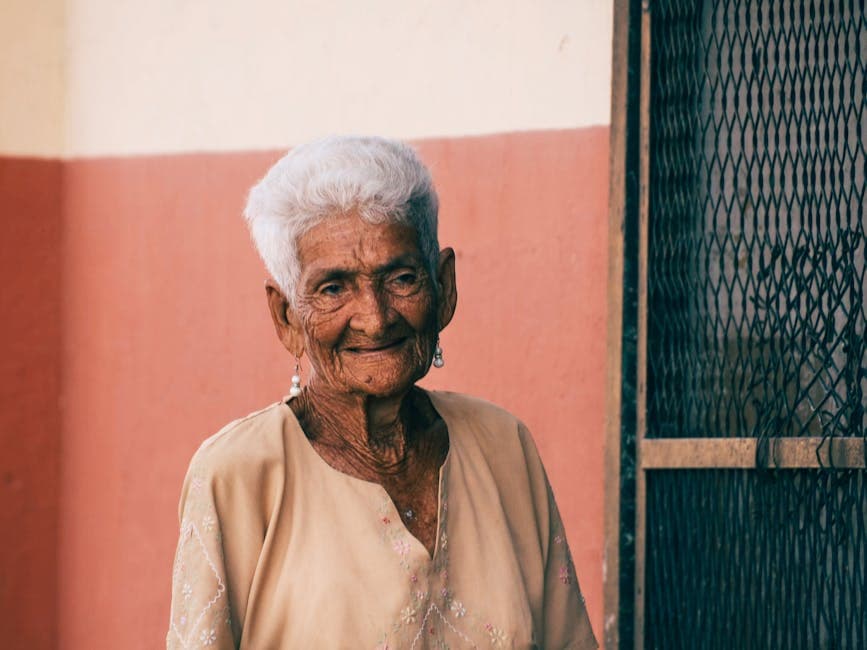
A Real Photo, Real Damage
This walk-through uses a real photo: a 1968 portrait of an 80-year-old woman taken on Kodachrome. Common damage for this era:
- Magenta cast (cyan dye faded first)
- Two small foxing spots near the right shoulder
- Mild face fading because the photographer used soft fill light
- A scratch through the upper-left corner where the album page rubbed
- General softness from the lens being focused slightly behind the eyes
By the end, the photo looks like the photographer intended in 1968.
Step 1: Scan First, Edit Later
A flatbed scan at 600 DPI captures more detail than the photo will ever need for typical uses. For a 4x6 inch photo, that's about 14 megapixels of data.
If you don't have a scanner, see our iPhone scanning tips for the best phone-based workflow.
Save the scan as TIFF, not JPG. TIFF preserves quality through multiple edit passes.
Step 2: Color Cast Removal
The magenta cast is the most obvious damage. Two approaches:
- Eyeballing: open in any photo editor, drop the magenta channel by 10-15%
- White-point matching: pick the brightest neutral spot in the photo (a white blouse, the background) and use the eyedropper white-balance tool
Eyeballing is fine for casual restoration. White-point matching is more accurate.
Our colorize tool can also handle severe color casts on photos that have lost almost all original color.
Step 3: Spot Removal
The two foxing spots and the scratch need targeted inpainting. Don't run AI inpainting over the whole photo because it will smooth over genuine detail.
In any modern photo editor (or PhotoFlip's AI editor):
- Zoom in to the damaged area
- Use spot-healing brush or AI inpainting tool
- Paint over the spot with a small brush (2-3x the spot diameter)
- Move to the next spot
For three small spots, total time is 1-2 minutes.
Step 4: Face Restoration
Now the face. Run our face restoration tool on the photo. The AI:
- Identifies the face
- Restores eye sharpness
- Recovers skin texture (without smoothing too aggressively)
- Brings back fine detail in hair and eyebrows
Important: review the result for over-smoothing. Photos of older people should look like older people. If the AI made grandma's wrinkles disappear, dial down the strength or rerun with lower restoration intensity.
See our photo restoration ethics post for when to leave wrinkles in.
Step 5: Final Sharpening
After all destructive edits, apply final sharpening. Settings for this photo:
- Radius: 0.8 pixels
- Amount: 75%
- Threshold: 4 levels
For portraits, sharpen luminance only (in LAB color space if available). RGB sharpening introduces color noise around eye edges.
Step 6: Crop and Save Both Versions
Crop to the target frame aspect (5x7 was common for portraits in the 1960s). Save:
- Master TIFF at full resolution (4200x6300 for the 600 DPI scan)
- Print JPG at 300 DPI for the chosen frame size
- Phone-friendly JPG at 1080px wide for sharing
Keep the original (unrestored) scan as a separate file for archival purposes.
Frequently Asked Questions
Should I show the family the restored OR original?
Both. Some relatives prefer the original (the photo as it actually existed in their hands). Others prefer the restored version. Save both, let viewers choose.
How do I handle group photos where only some faces need restoration?
Run face restoration on each face individually if the tool supports it. If not, mask the faces that need restoration and apply only to those.
What about the photo where my grandmother is laughing in a way that doesn't look like her?
If the AI smoothed her face too aggressively, dial down strength. If you can't get it right, leave the photo as-is. Better to have an imperfect document than an idealized one.
Can I use this workflow for digital photos that are just blurry?
Yes — skip color cast and spot removal, jump to face restoration and sharpening. Our fix blurry photos tool is designed for digital sources.
Related Reading
- Wedding Photo Restoration Checklist
- Best AI Photo Restoration Tools Compared
- Memorial Slideshow Photo Prep
Bottom Line
Scan at 600 DPI. Color cast first, then spots, then face, then sharpen. Save originals AND restored. Use PhotoFlip's face restoration and colorize tools as the AI-powered steps. The whole process takes 15-30 minutes per photo and produces results good enough to print and frame.