Digitize a Whole Photo Album in One Weekend (Without Going Insane)
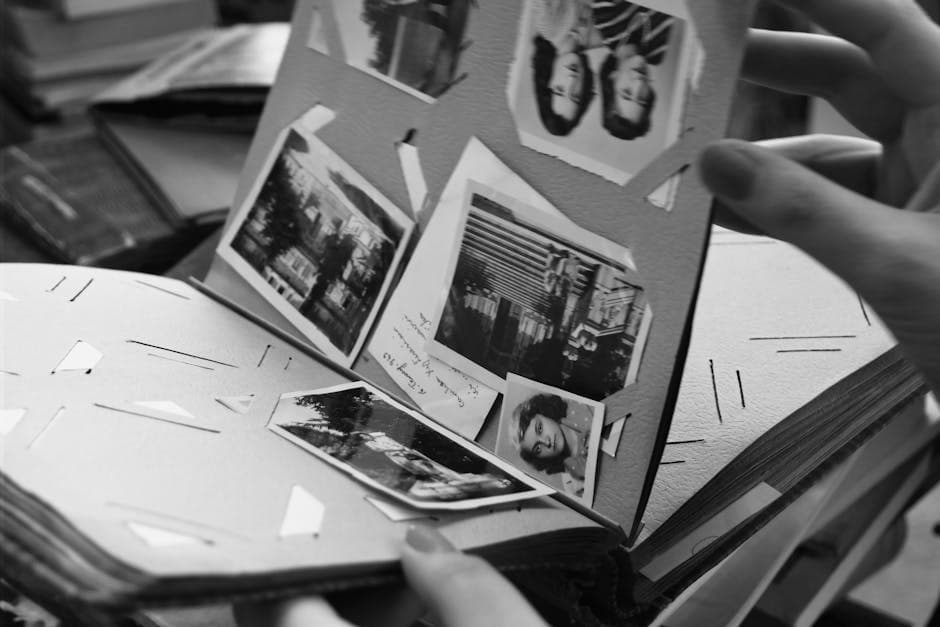
Why Most People Quit Halfway
The typical photo-digitization project: someone borrows the family album, spends Saturday morning carefully scanning the first 30 photos, gets distracted, never returns to it. Eight months later the album goes back to its owner with no digital copies.
The problem isn't motivation. It's workflow design. People try to do EVERYTHING for each photo (scan, restore, name, organize, share) which makes each photo a 5-10 minute project. That's 25-50 hours for 300 photos. Nobody has 25 hours.
The fix is to separate the steps. Scan ALL photos first, completely. Then restore. Then name and organize. Each phase is bounded and finishable.
The Two-Day Plan
Saturday: Scan everything (4-6 hours)
Goal: Every photo in the album becomes a TIFF file on your computer. No restoration, no naming, no sorting. Just scans.
Setup once:
- Flatbed scanner at 600 DPI
- Plain TIFF output
- Auto-numbering:
album-001.tif,album-002.tif, etc. - Pull each photo out of the sleeve, scan, replace
Throughput: 30-60 seconds per photo with practice. 300 photos in 3-5 hours.
If you don't have a scanner: phone scanning works (see iPhone scanning tips) but is slower per photo.
Saturday evening: Quick review
Browse all the scans on a computer monitor. Mark for restoration:
- Photos with damage (scratches, water stains, foxing) → flag
- Photos with severe color cast → flag
- Faded portraits → flag
- Group photos worth investing in → flag
The rest get sorted as-is. Maybe 30-40% of typical albums need restoration. The other 60-70% are fine.
Sunday morning: Batch restoration (2-3 hours)
For flagged photos, run through restoration. Two options:
Cheap and fast: Run all through PhotoFlip's face restore in batch. 30 seconds per photo, $0.20-0.40 per photo on subscription.
Higher quality: Run through PhotoFlip first, then open the final 5-10 hero photos in Photoshop for fine-tuning. See photo restoration vs Photoshop comparison.
For typical albums, batch processing gets you 90% of the quality you'd get with manual restoration in 10% of the time.
Sunday afternoon: Naming and organization (2-3 hours)
Now the human part. With everyone in the photos potentially named via:
- Family member input (Zoom call with parent or sibling)
- Album captions you scanned (back of photo)
- Educated guesses
Naming convention:
1968-summer-grandma-tom-mary-cousin-cabin.jpg- Or use a photo manager (Apple Photos, Lightroom, Mylio) with face recognition + manual corrections
A photo manager often beats manual file naming because face recognition handles the bulk of work.
What to Skip
Don't waste time on:
- Color correction on every photo. Most family photos look fine after just face restoration. Save color correction for photos with severe cast.
- Removing every scratch. Minor scratches that don't draw attention can stay. Period markers add authenticity (see restoration ethics).
- Upscaling to 4K. Unless you're printing a wall-sized portrait, scan resolution is enough.
- Perfect file naming. Better to have 300 photos with mediocre names than 50 perfectly named.
- Generating colorized versions of all B&W photos. Pick the 5-10 most important and colorize those. The rest stay B&W.
What's Worth the Time
Spend extra time on:
- The 10 hero photos (great-grandparents, weddings, milestone events). These get the full restoration + manual review treatment.
- Multi-page captions on the back of photos. Scan separately, OCR if possible. The handwritten notes are often the only record of who's who.
- Group photos with extended family. These connect the most people across the family tree.
- Photos that are already deteriorating. The originals will continue to fade. Prioritize these for high-quality scans.
Sharing the Result
After digitization:
- Cloud backup to Google Photos, iCloud, or OneDrive (whichever the family uses)
- Family share folder with naming conventions everyone agrees on
- Print copies of the 10 hero photos for relatives who don't use cloud
- Slideshow for next family gathering (see memorial slideshow prep for technique)
Frequently Asked Questions
How many photos can I realistically scan in one day?
200-300 with a flatbed scanner if you stay focused. 100-150 with a phone scanner. Above that, you're rushing and quality drops.
What format should the final files be?
Master copies as TIFF (long-term, lossless). Sharing copies as JPG (smaller, universal). Always keep both.
My album has photos glued in. Help.
Magnetic-page albums (1970s-1990s) are usually safe to peel. Acid glue albums (1960s and earlier) might damage the photo. For glued photos, scan in place; quality is slightly worse but the photo is preserved.
What about Polaroids and slide film?
Polaroids scan fine on a flatbed at 600 DPI. Slide film needs a slide scanner (Plustek, Epson V850 with film holders). Phone scanning is poor for slides because of the backlit nature.
How do I share with relatives who aren't tech-savvy?
USB stick with the JPG copies. Mail to them. Most older relatives can plug a USB into a smart TV or computer.
Related Reading
- Wedding Photo Restoration Checklist
- Scan Old Photos with Your iPhone Tips
- AI Photo Restoration Cost Comparison 2026
Bottom Line
Separate scan-everything, restore-flagged, name-and-organize into three distinct phases. Use PhotoFlip's face restoration for batch restoration. Don't try to perfect every photo. Get through the album in two days, then iterate on the heroes.